
Accounts and signing in
Your Epruvo account is one login that can belong to several companies. The account is yours; the department, role, and permissions are set separately inside each company you belong to.
Signing in
- Open the login page.
- Enter your Email and Password.
- Select Log In.
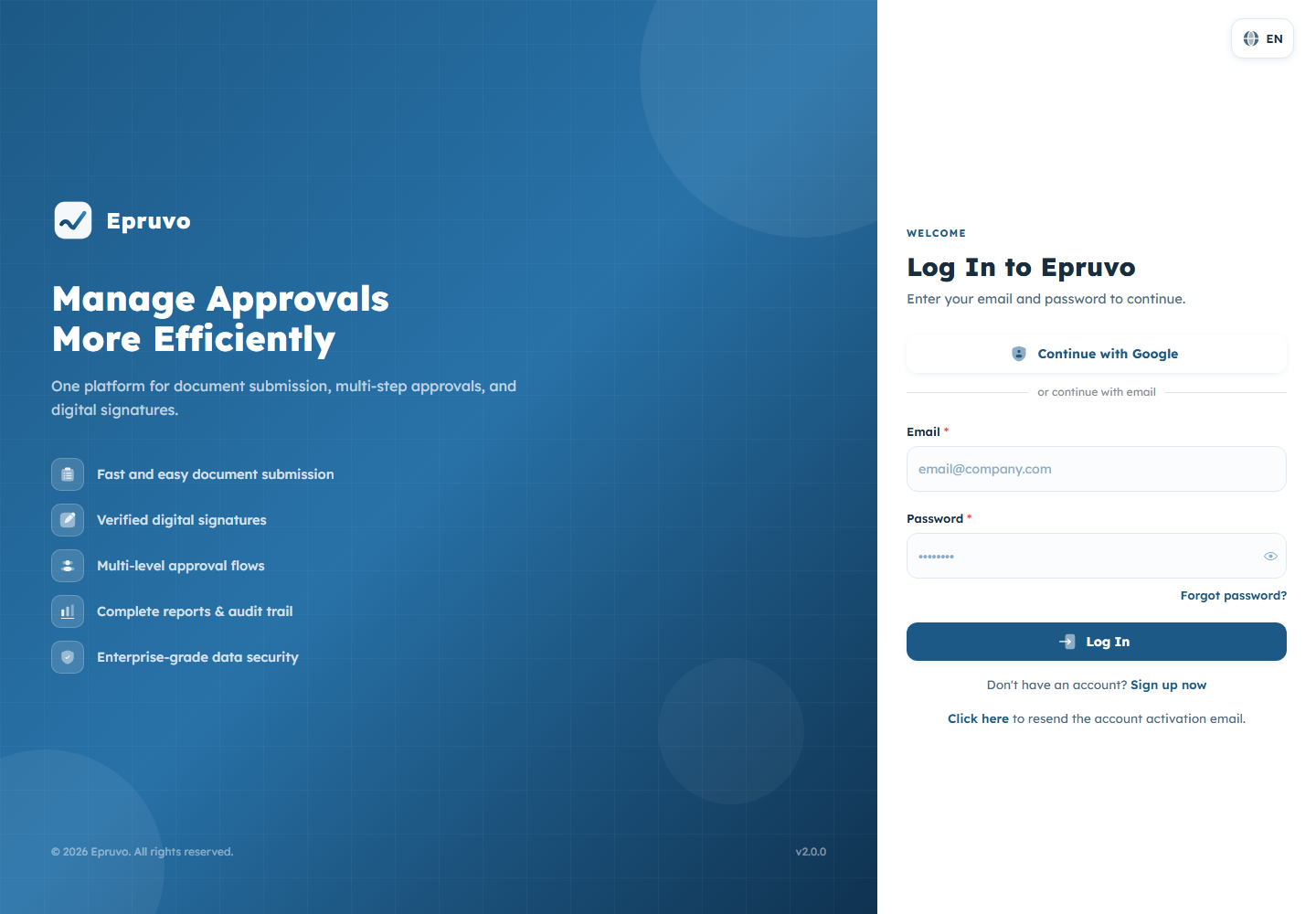
If your company uses single sign-on, a Continue with … button appears above the email fields. Select it and you will be sent to your organisation's own sign-in page; Epruvo takes you back once it recognises you. If that round trip fails, Epruvo shows an SSO login failure page — sign in with your email and password instead, and tell whoever administers SSO.
If you belong to more than one company, Select Company appears next. Choose the one you want to work in.
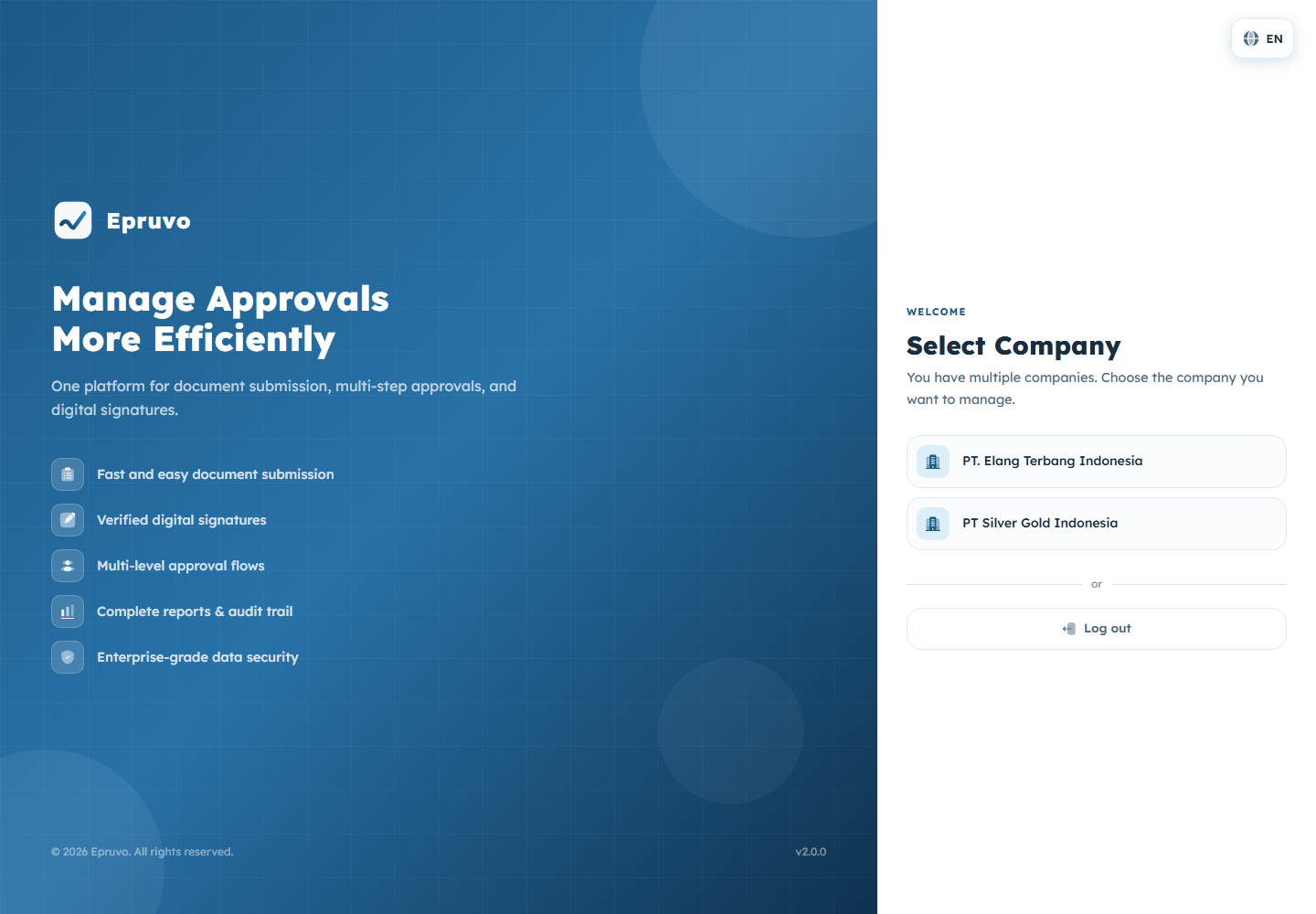
You do not have to sign out to change company later — see Moving between companies.
Getting an account
There are two ways an account comes into being, and which one applies to you depends on whether someone invited you.
You were invited
An administrator added you under Settings → Users, and Epruvo emailed you. Open the link in that email, set a password, and your access is active. The link is single use.
If the email never arrived, ask the administrator to use Resend on your row. If it arrived but the link no longer works, use the resend link on the login page to send a fresh activation email.
You are starting a company yourself
Select Sign up now on the login page. Epruvo asks which kind of registration you want:
| Use when | |
|---|---|
| New Account | You have no Epruvo account at all. Creates the account and the company together. |
| Existing Account | You already sign in to Epruvo somewhere and want to create another company under the same login. |
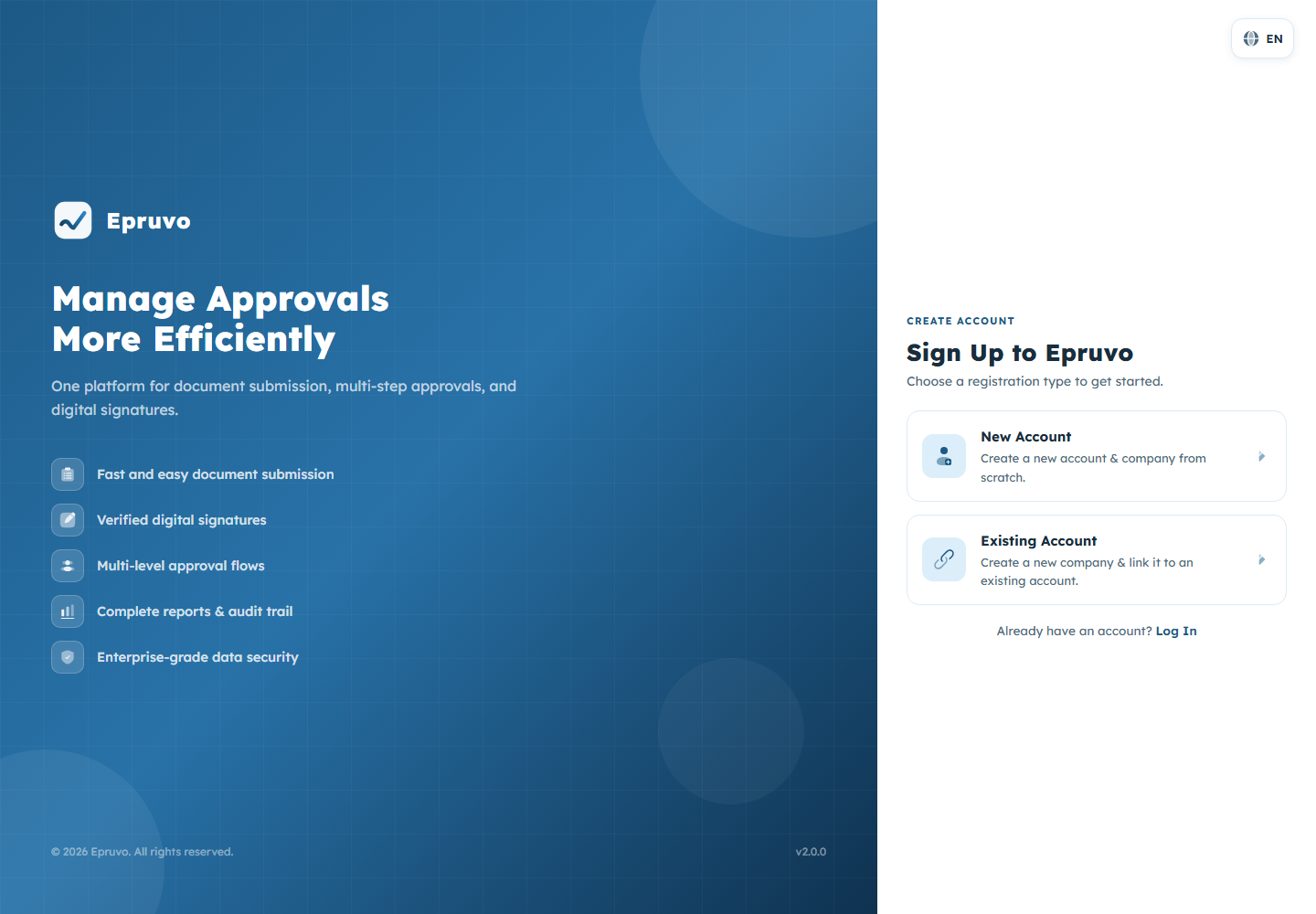
Either way you supply Country, Time Zone, and Company Name. A new account also needs Salutation, Full Name, Email, and a password.
Passwords must be at least 8 characters and contain an uppercase letter, a number, and a special character. The strength bar under the field shows which of those you still owe.
After a New Account registration, check your email and open the activation link before trying to sign in. After Existing Account, you can sign in straight away.
When you cannot get in
| What you see | What to do |
|---|---|
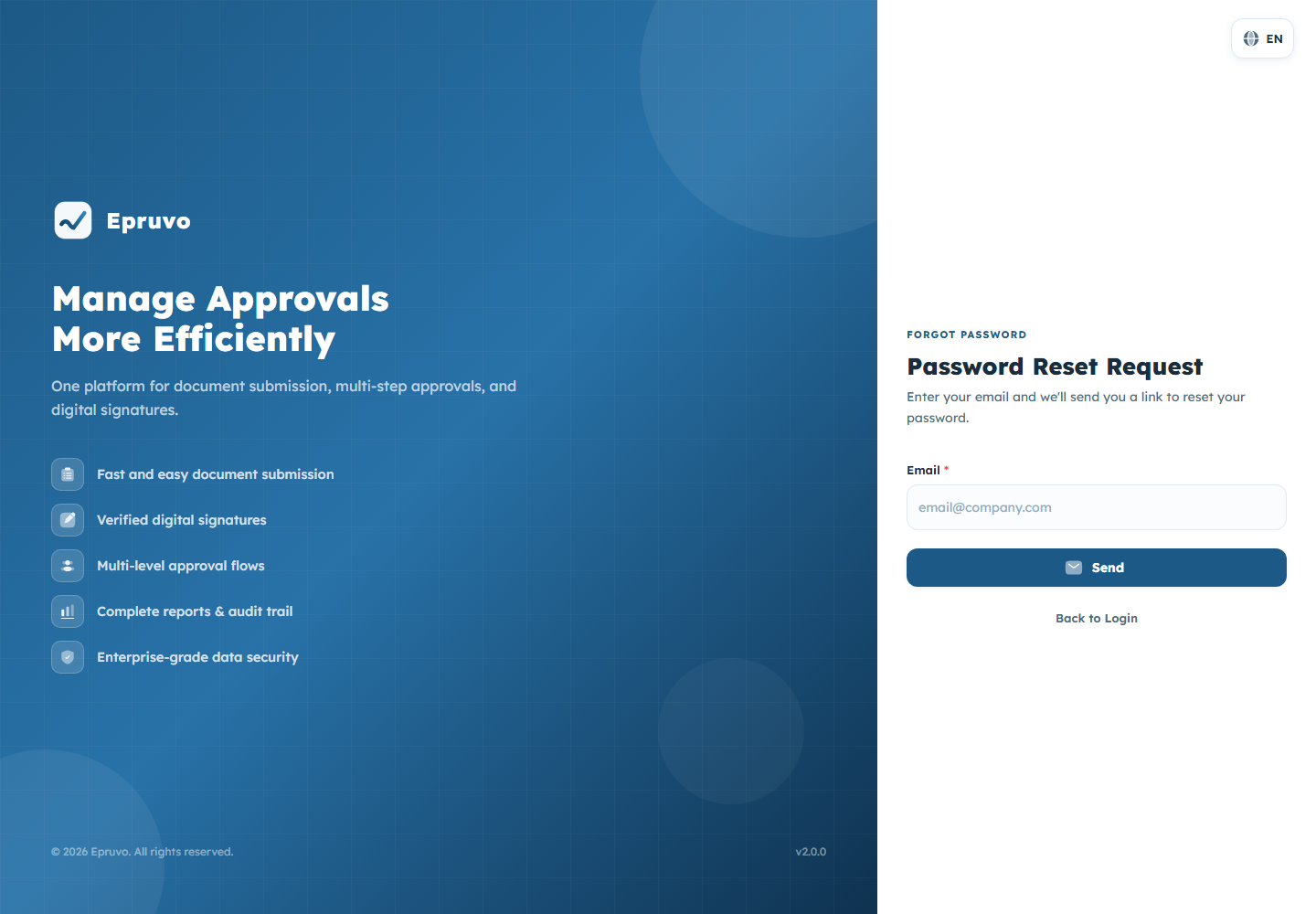
| Password is not accepted | Select Forgot password? on the login page. Epruvo emails you a Confirmation Code; enter it with your new password on the reset page. |
| "The verification link is invalid or has expired" | Request a new activation email from the resend link on the login page. |
| Sign-in works but you land nowhere useful | Your account exists but has no active company access yet. Accept the pending invitation from your email first. |
| SSO returns you to a failure page | Sign in with email and password, and report it — that failure is on the identity provider side, not inside Epruvo. |
More situations are collected in Common problems.
Changing your password
Not from the user menu — that entry currently leads nowhere. Open Profile instead, where the Change Password card sits under your account details. See Your profile and notifications.
Moving between companies
Switch Tenant in the user menu, at the bottom of the sidebar, lists every company your account belongs to. Choosing one reloads Epruvo in that company.
Nothing carries over. Your role, your department, your permissions, and every document you can see are per company. A document you were approving in one company is not visible from another, and a menu you have in one may be absent in the other.
Signing out
Log Out in the user menu. Epruvo confirms first, because an unsaved draft is lost when the session ends.