
Users
Settings → Users. Needs a role with user permissions.
This is the list of people who can work inside this company. Adding someone here does not create a password for them — it sends them an invitation and lets them set their own.
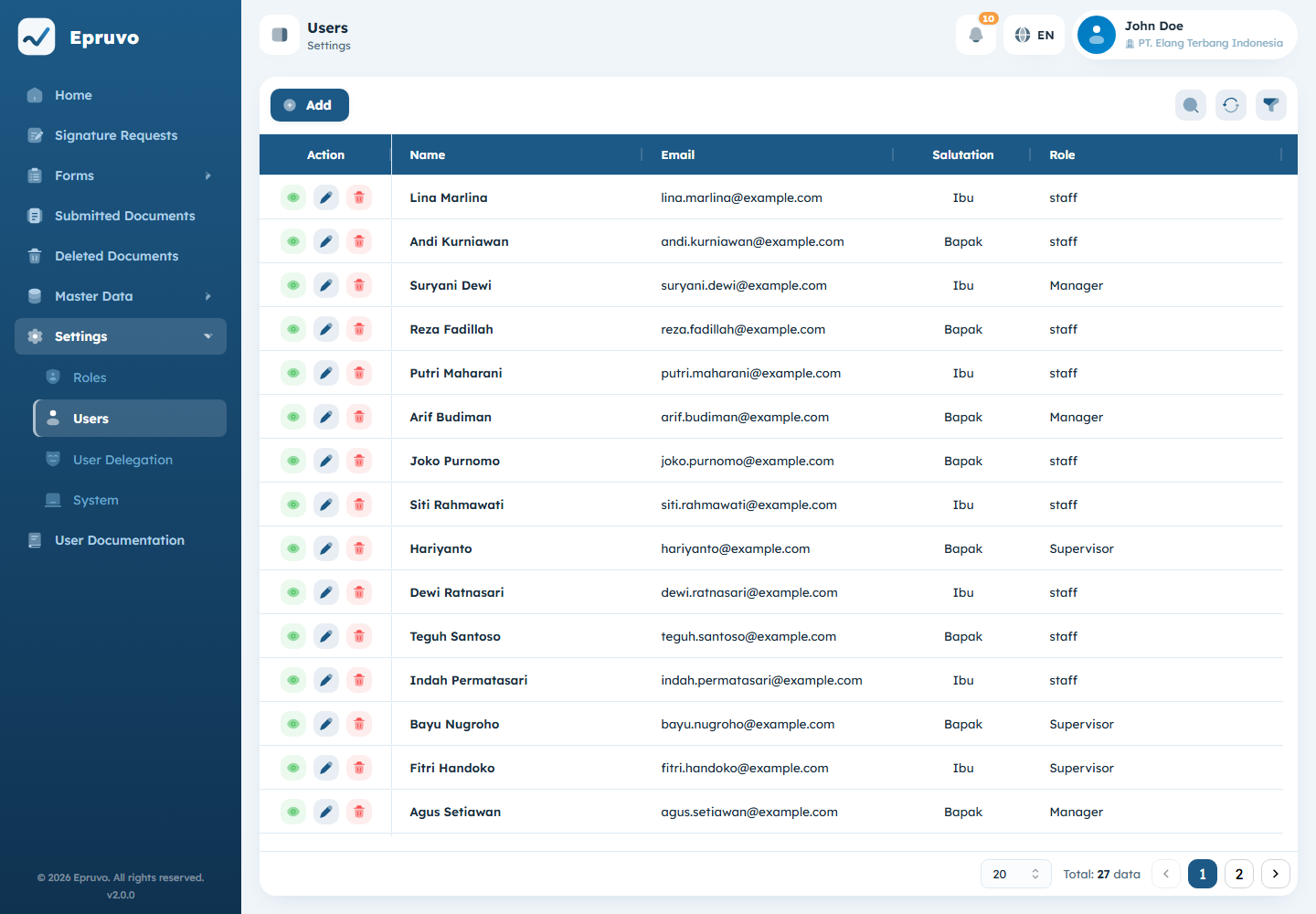
What a user record holds
| Field | Why it matters |
|---|---|
| Salutation | How they are addressed in emails Epruvo sends |
| Full Name | What colleagues see on approver lists and timelines |
| Their login, and where invitations and notifications go | |
| Role | What they can see and do — see Roles and permissions |
| Department | Which branch of the tree they sit in, which decides who their approvers are — see Organisation and departments |
| Active Status | Whether they can currently work in this company |
All of it applies to this company only. The same person in another company has a different department, a different role, and possibly a different name spelling. One login, a separate profile per company.
Adding someone
- Select Add.
- Fill in Salutation, Full Name, Email, Role, and Department.
- Select Save.
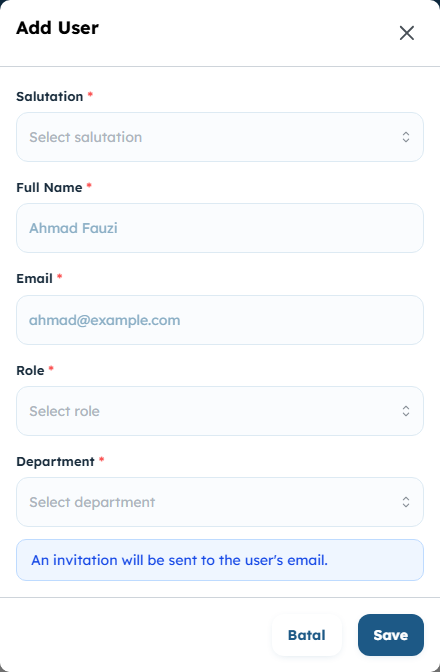
Epruvo emails them an invitation. They open it, choose a password, and their access becomes active. You are not setting a password on their behalf, and there is no temporary one to pass along.
Getting Department right at this point saves trouble later. It is what Atasan 1 and the other positional approver groups resolve against, so a person in the wrong branch sends their documents to the wrong manager, and the mistake only surfaces when something they submitted arrives somewhere unexpected.
Managing an existing user
| Action | Does |
|---|---|
| View | Opens the read-only detail page |
| Edit | Changes role, department, salutation, name, and active status |
| Resend | Sends the invitation email again, for someone who never activated |
| Delete | Removes their access to this company |
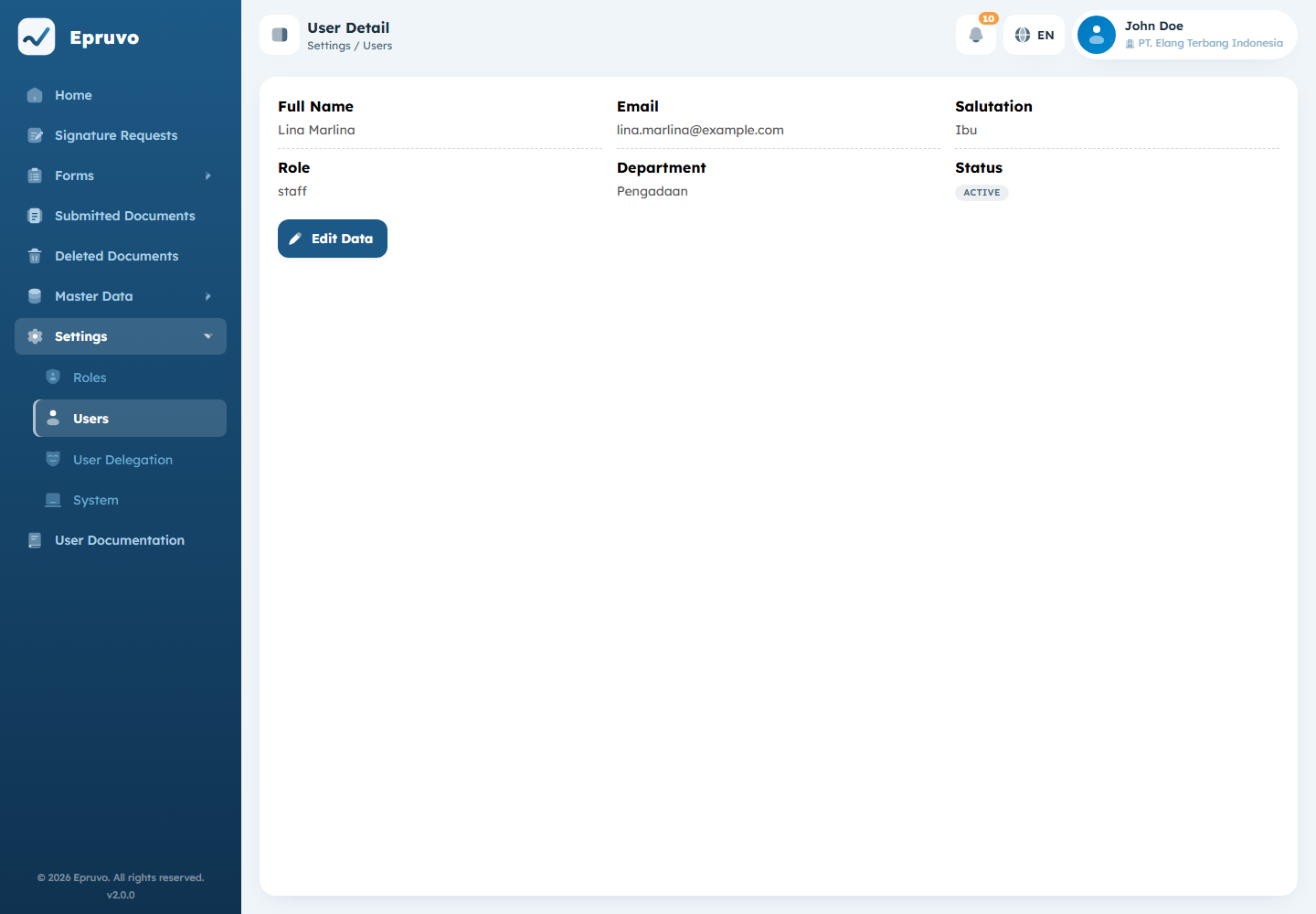
Active Status is the gentler option. Switching someone to inactive stops them working here while leaving every document they submitted, approved, or signed exactly where it is. Use it when somebody leaves; keep Delete for records created by mistake.
Neither one rewrites history. A document approved by a person who has since left still shows their name in its timeline, because that is what happened.
Filtering
Filter narrows the list by name, email, role, department, salutation, and status. Reset clears it. Useful when you need to see, say, everyone in one department before reorganising it.
Common problems
| The invitation never arrived | Check the address on the row first, then use Resend. If nothing arrives at all, the company's email settings may be at fault — see Company settings. |
| They activated but see almost no menus | Their role carries few permissions. See Roles and permissions. |
| Their submissions go to the wrong manager | Wrong Department. Fix it here; documents already submitted keep the approvers they were given. |
| The email address is already in use | That person already has an Epruvo account. Adding them here links that existing account to this company rather than creating a second one. |
| Someone left and you want their history gone | It will not be. Set them inactive instead; the trail on past documents is deliberately permanent. |