
Submitting a form
Forms in the sidebar. Everyone has this menu.
Forms does not open a page of its own. It expands, and every form your company has published — and your role is allowed to use — appears underneath it. Choose one and you get that form's document list.
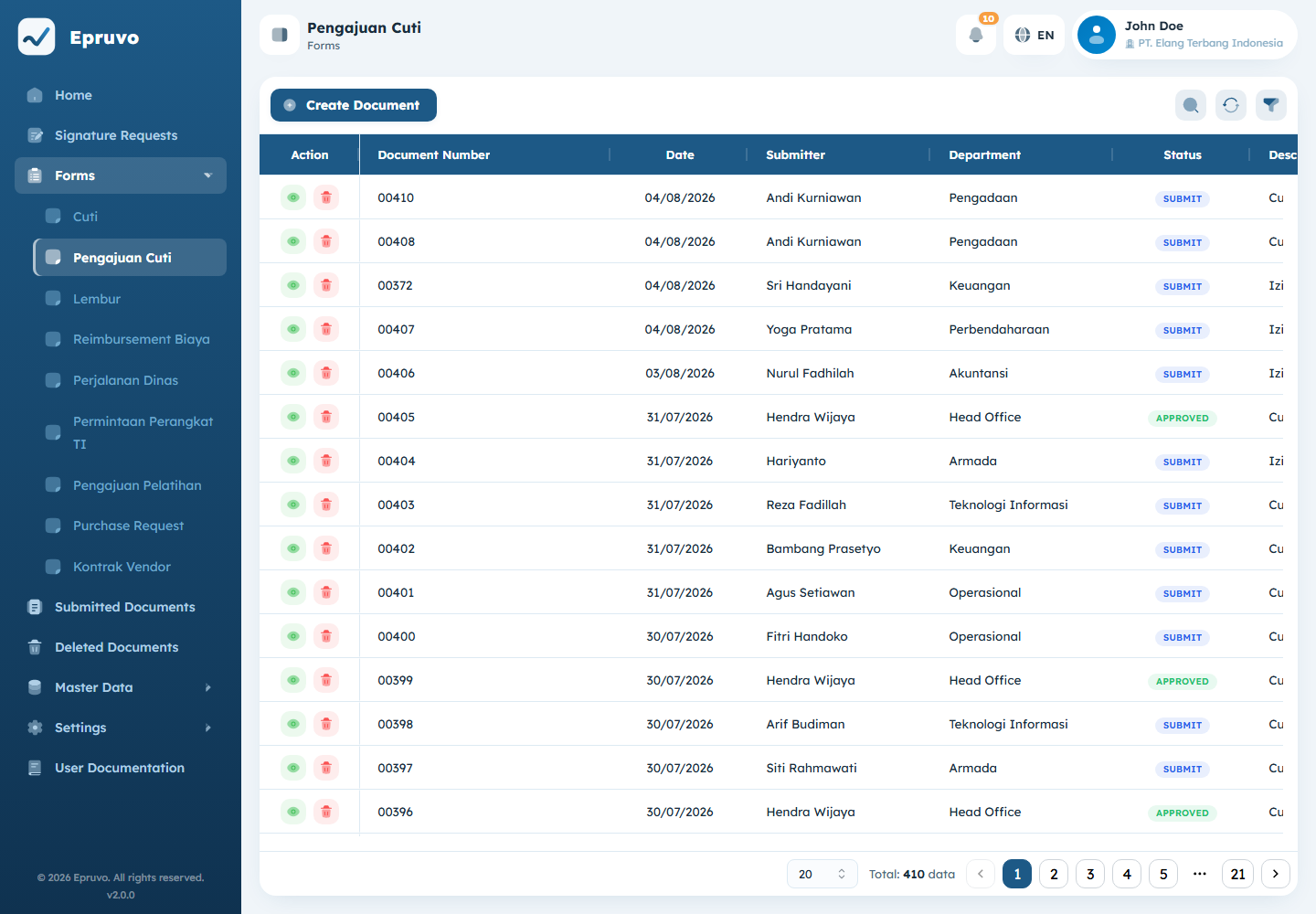
The list shows documents from that form only, newest submission first. Columns depend on which fields the template marks Show in List, on top of the standard ones: Document Number, Date, Submitter, Department, Status, Description.
Creating a document
- Choose the form under Forms.
- Select Create Document.
- Check Document Date and Department.
- Fill in the fields under Additional Fields.
- Attach a file if the form asks for one.
- Select Submit.
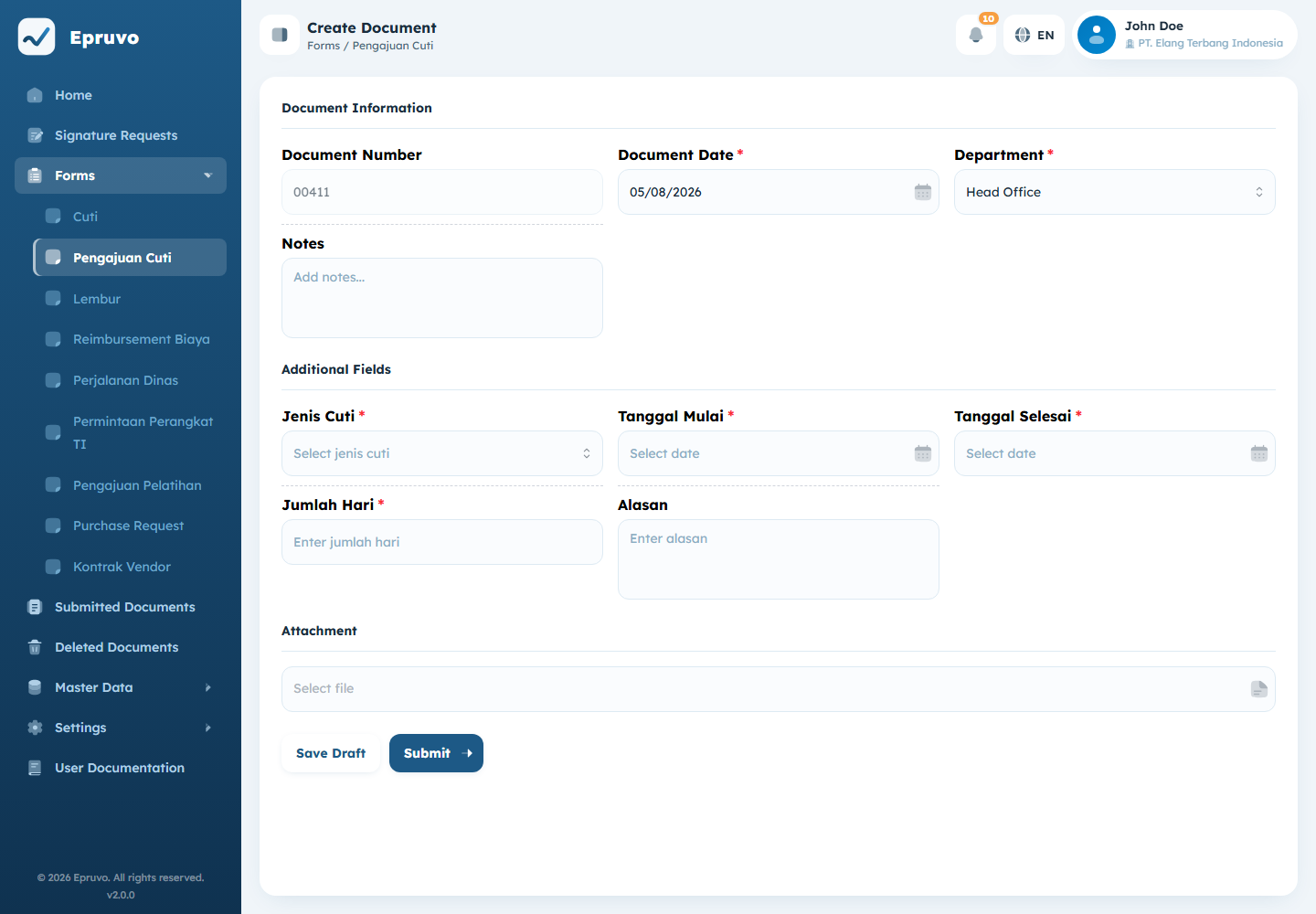
Some of it is filled in for you:
- Document Number is issued automatically. It is not editable, and it shows what the number is going to be.
- Document Date defaults to today.
- Department defaults to yours. If the form has Lock Department on, it is fixed and cannot be changed — that is deliberate, because the department decides who your approvers are.
Notes is free text for context that does not fit a field.
Save Draft or Submit
Save Draft keeps everything without sending it anywhere. The document sits at DRAFT, visible to you, and no approver is troubled. Required fields are not enforced yet, so a half-finished form is a perfectly good draft.
Submit is the commitment. Epruvo checks the required fields, then asks you to confirm — the wording is blunt on purpose: the document goes to the approvers and you cannot change it afterwards.
A draft you no longer want can be deleted from its own page.
Following it
Open a document from the list to see where it stands.
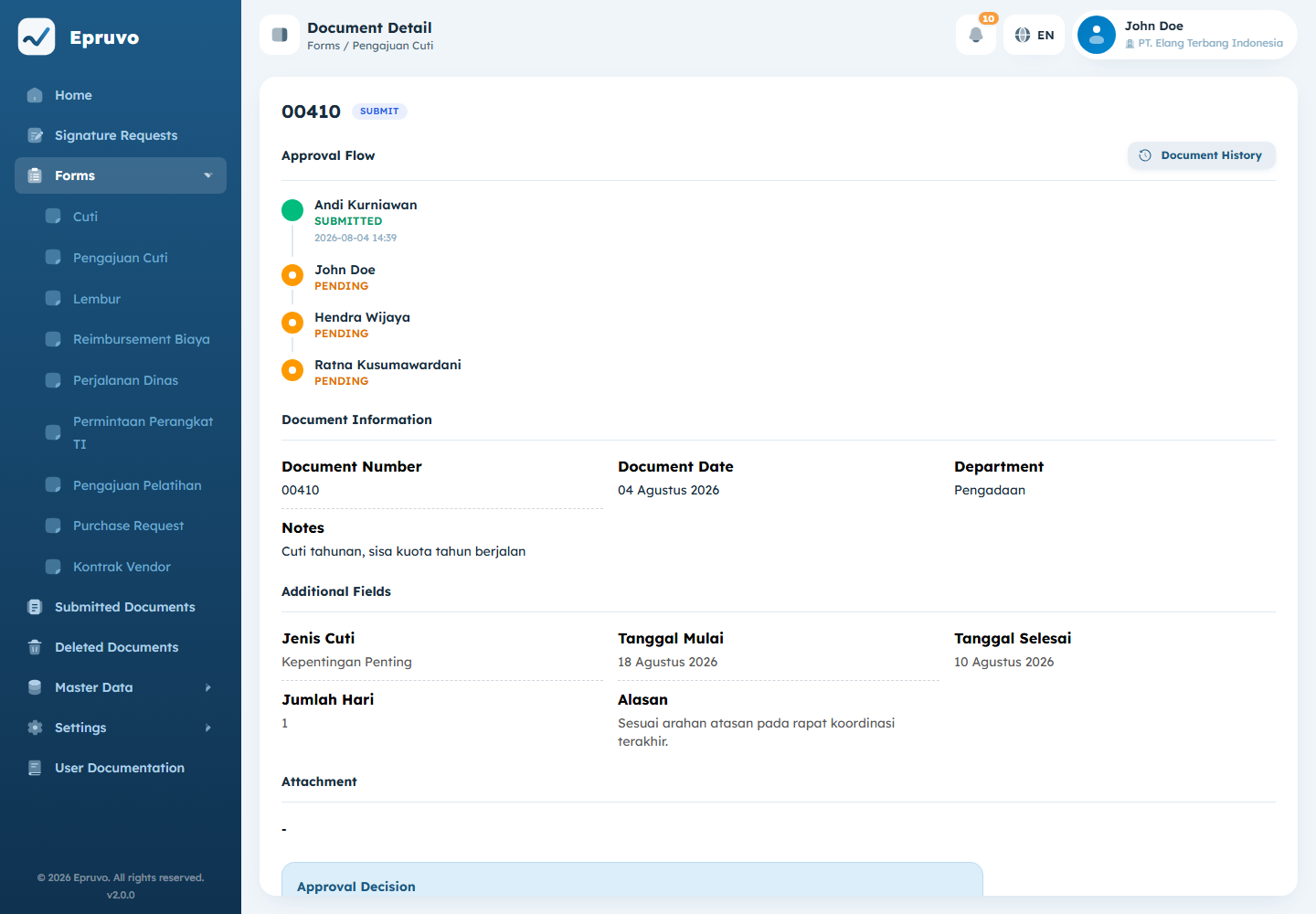
The Approval Flow card at the top is the timeline: every step in order, who is on it, what they decided, when, and any note they wrote. A step needing only one of several people is marked (Either one — OR).
If a name has another in brackets beside it, someone acted as that person's delegate. See Delegation.
Document History opens the full record — every action on the document, including resubmissions, in the order they happened.
Statuses
| Status | Means |
|---|---|
DRAFT | Saved, not submitted. Only you see it. |
PENDING | Submitted, somewhere in the approval flow |
APPROVED | Every step approved. The PDF is available. |
REJECTED | A step rejected it. Back with you, editable again. |
VOID | Withdrawn after approval |
Those are the words on the badge. The Filter dialog uses friendlier ones for the same states — Draft, On Progress, Approved, Rejected, Void. Both refer to the same thing.
After a decision
Approved. A Download Document button appears. It produces the finished PDF, assembled once and kept, so the copy you download today and the one a colleague downloads next month are the same file.
Rejected. The document becomes editable again and is yours to fix. The rejection note is on the timeline. Correcting it and selecting Submit sends it back through the approval from the beginning — approvers who already agreed are asked again, because they agreed to a different version.
Void. Withdrawing a document that was already approved. The button only appears for roles carrying Force Delete Document, and only on an approved document. It does not delete anything; the document stays visible at VOID with its history intact.
What you can change, and when
| Editable | Only while DRAFT or REJECTED, and only by whoever submitted it |
| Deletable | Same window |
| Not editable | While PENDING, once APPROVED, and once VOID |
Opening a document from Submitted Documents or Deleted Documents always gives you a read-only view, whatever its status. Those menus are for looking back, not for acting.
Attachments
Where a form asks for one, Attachment sits below the fields. Forms with Mandatory Attachment refuse to submit without it — a draft still saves.
Fields of type File and Multi File are separate from that main attachment and behave the same way. On a submitted document, each becomes a link that opens the file.
Common problems
| Forms expands but is empty | No form is active, or none is allowed for your role. Ask an administrator. |
| Create Document is missing | The form has been switched inactive. Existing documents stay readable; new ones are refused. |
| Submit is refused, "Complete all required fields" | A required field is empty. The empty ones are marked. Save Draft still works. |
| A date field will not take a Saturday | Allow Weekends is off for that field. |
It sat at PENDING for days with no approver | The step could not resolve to a person. An administrator can check with Preview Approver — see Form templates. |
| Download Document is not there on an approved document | The PDF is still being assembled. Reload in a moment. |
| You cannot edit your own submitted document | Only DRAFT and REJECTED are editable. Ask an approver to reject it if it has to change. |
| Someone else's document is not in your list | Your role may be limited to documents you are involved in. See Roles and permissions. |