
Form templates
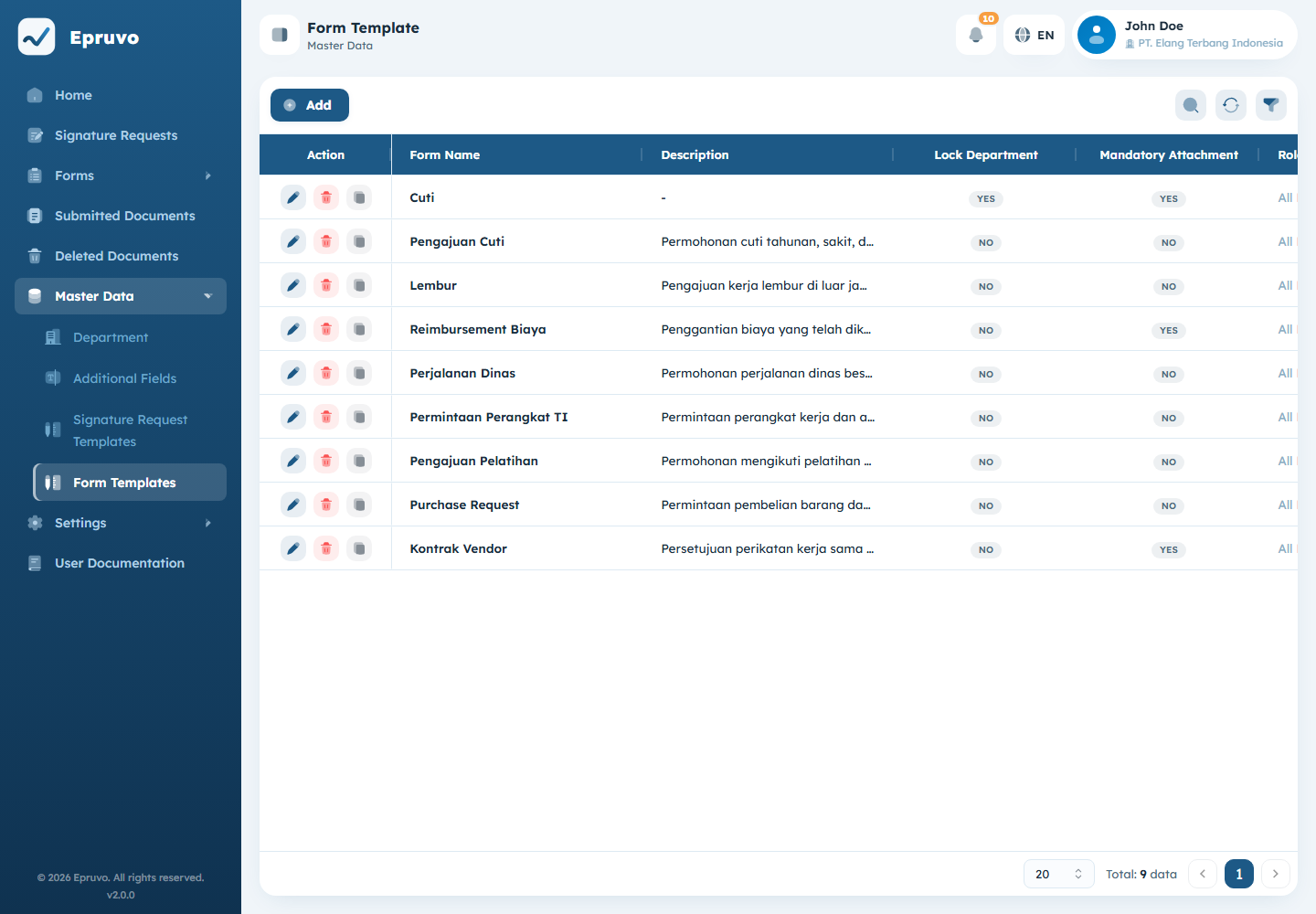
Master Data → Form Templates.
A form template is one kind of request your company handles — a leave request, an expense claim, an asset request. It decides what the form asks, how its documents are numbered, and who has to approve them.
Publishing a template makes it appear under Forms in everyone's sidebar, for the roles you allow. That is the moment it becomes real work for other people, so it is worth getting the approval steps right before you switch it active.
INFO
This menu may be visible to people who cannot edit anything in it. Menu visibility follows any single form-request permission, and "create a form request" — which ordinary submitters need — is one of them. See Roles and permissions.
A template is edited across four tabs. Each saves separately, so you can build it in sittings.
Basic Information
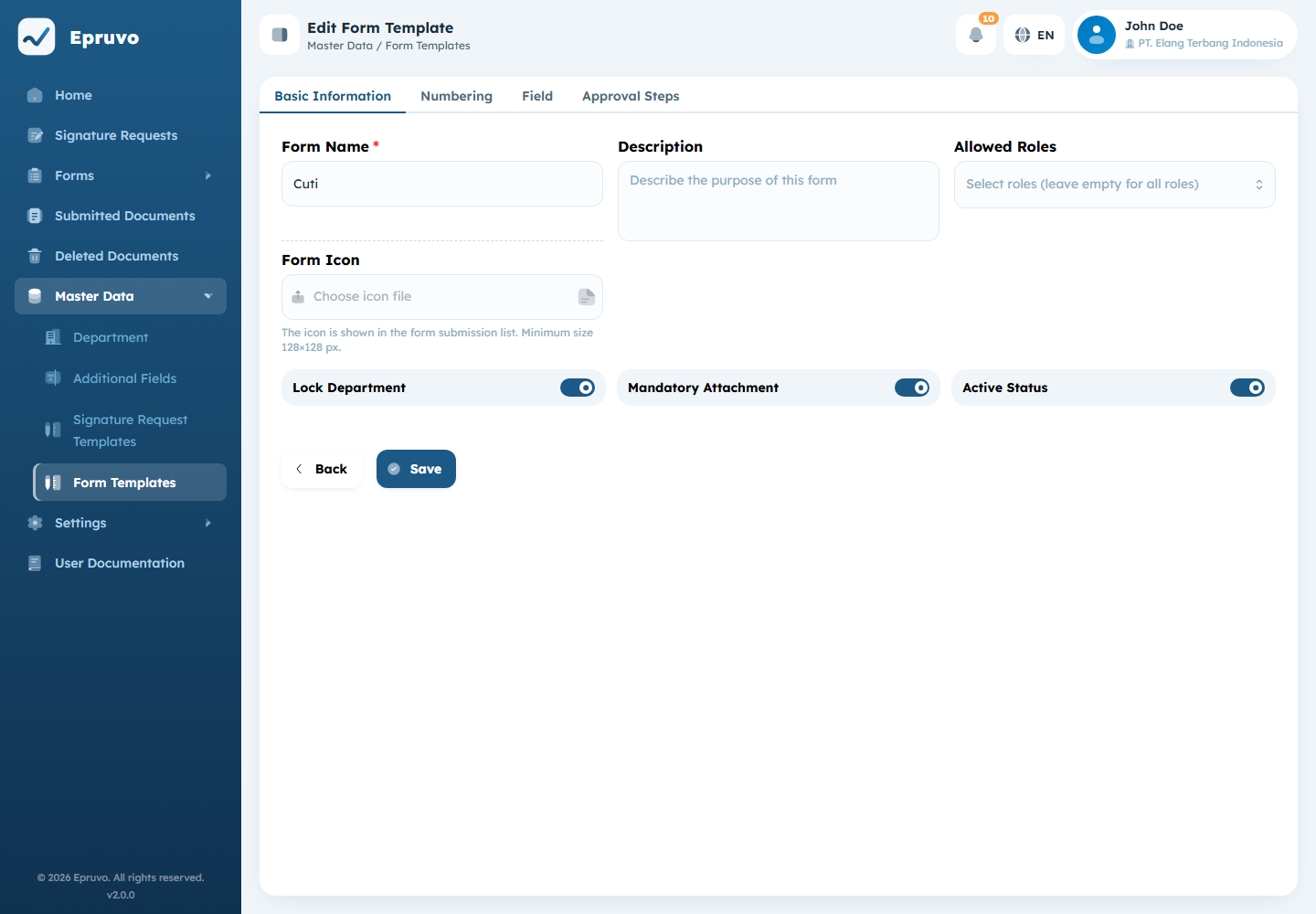
| Field | What it does |
|---|---|
| Form Name | What appears in the sidebar and on every document from this form |
| Description | What the form is for |
| Allowed Roles | Which roles may submit it. Leave empty for everyone. |
| Form Icon | The icon beside it in the sidebar. At least 128×128 px. |
| Lock Department | Fixes the department to the submitter's own, with no choice |
| Mandatory Attachment | Refuses submission without a file attached |
| Active Status | Whether the form is live |
Allowed Roles is a submission gate, not a visibility gate for the template itself.
Lock Department matters more than it looks. The department on a document is what the positional approver groups resolve against, so leaving it open lets a submitter pick a department — and therefore pick their approvers. Lock it unless people genuinely submit on behalf of other departments.
Active Status off keeps every existing document readable but removes the form from the sidebar and refuses new submissions. That is how you retire a form without erasing its history.
Select Save & Continue to move on.
Numbering
Documents get their number automatically at submission. This tab decides its shape.
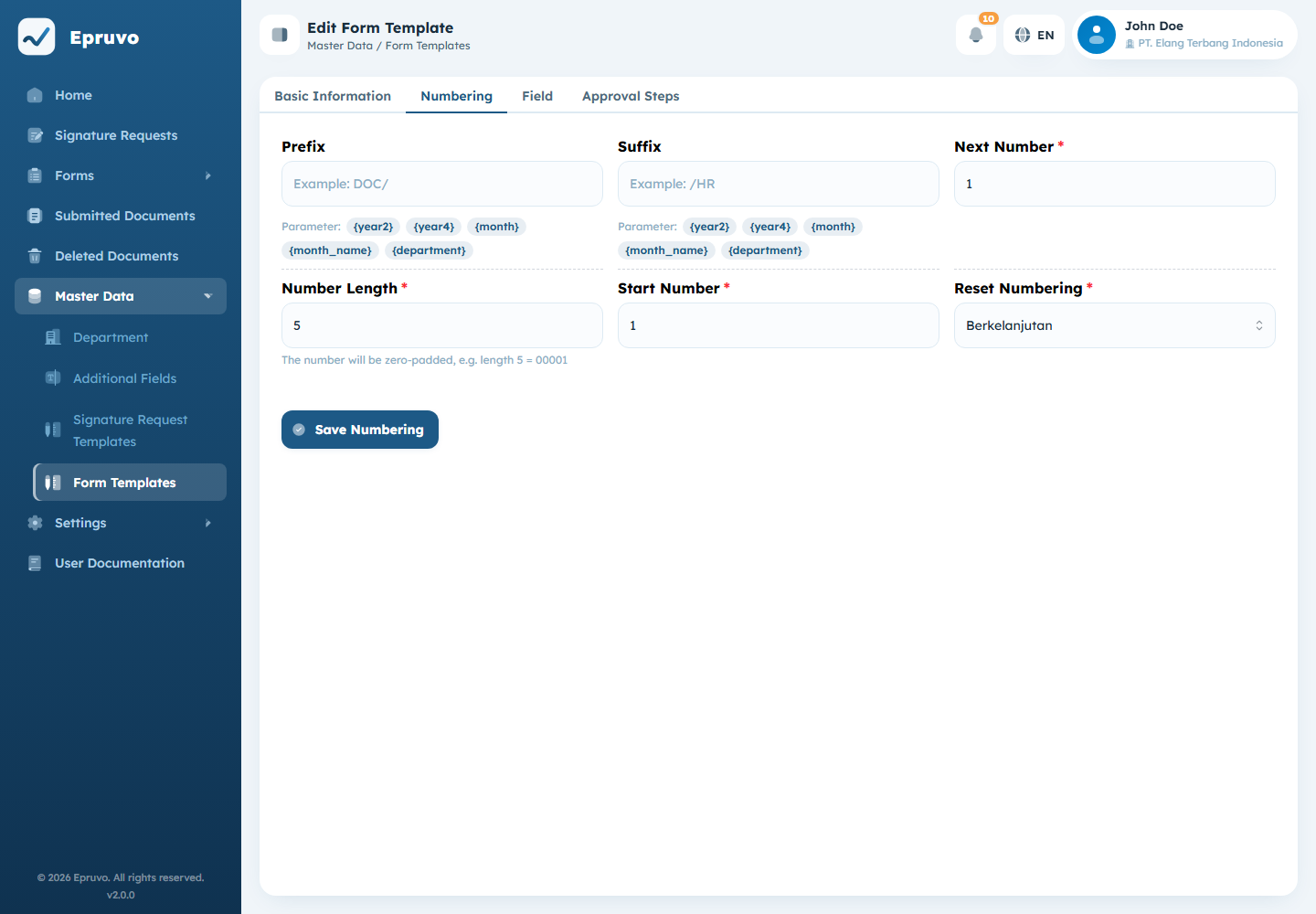
| Field | What it does |
|---|---|
| Prefix | Text before the number, e.g. DOC/ |
| Suffix | Text after it, e.g. /HR |
| Start Number | Where the counter begins |
| Next Number | What the next document will get. Editable, so you can continue an existing series. |
| Number Length | Zero padding — length 5 gives 00001 |
| Reset Numbering | Berkelanjutan never resets, Bulanan restarts each month, Tahunan restarts each year |
INFO
The three reset options appear in Indonesian in both interface languages.
Prefix and Suffix accept parameters that are filled in when the number is issued. Buttons under each field insert them:
| Parameter | Becomes |
|---|---|
{year2} | Two-digit year |
{year4} | Four-digit year |
{month} | Month as a number |
{month_name} | Month name |
{department} | The Code of the document's department — see Organisation and departments |
So CUTI/{department}/{month}/{year4}/ with Number Length 4 and monthly reset produces CUTI/HR/08/2026/0001.
Pair a parameter with the matching reset. Monthly reset without {month} in the number makes last month's 0001 and this month's 0001 indistinguishable.
Select Save Numbering.
Fields
Two panels: Available Fields on the left, Fields in This Form on the right. Drag across to add, drag within the right panel to reorder. That order is the order people fill them in.
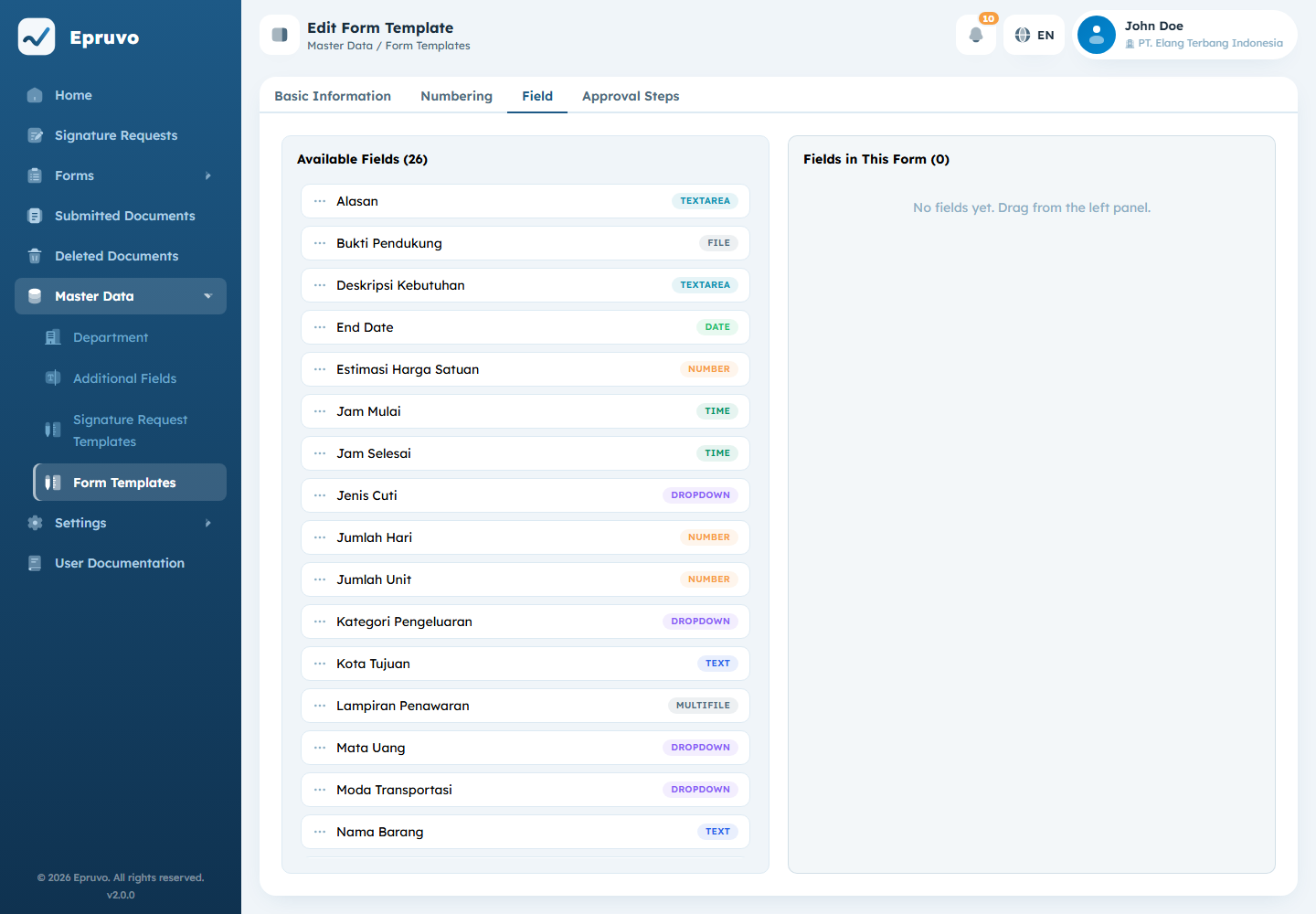
Each chosen field carries its own switches:
| Switch | Effect |
|---|---|
| Required | Submission is refused without it. A draft can still be saved. |
| Show in List | The field becomes a column in this form's document list |
| Allow Weekends | Date fields only. Off means Saturday and Sunday cannot be chosen. |
| Decimal Precision | How many decimal places a numeric answer keeps |
Show in List is how an approver scans a list without opening each document. Two or three genuinely distinguishing fields help; ten make the list unreadable.
The fields themselves come from Additional fields. If one you need is missing, define it there first.
Approval Steps
This is what turns a form into a workflow.
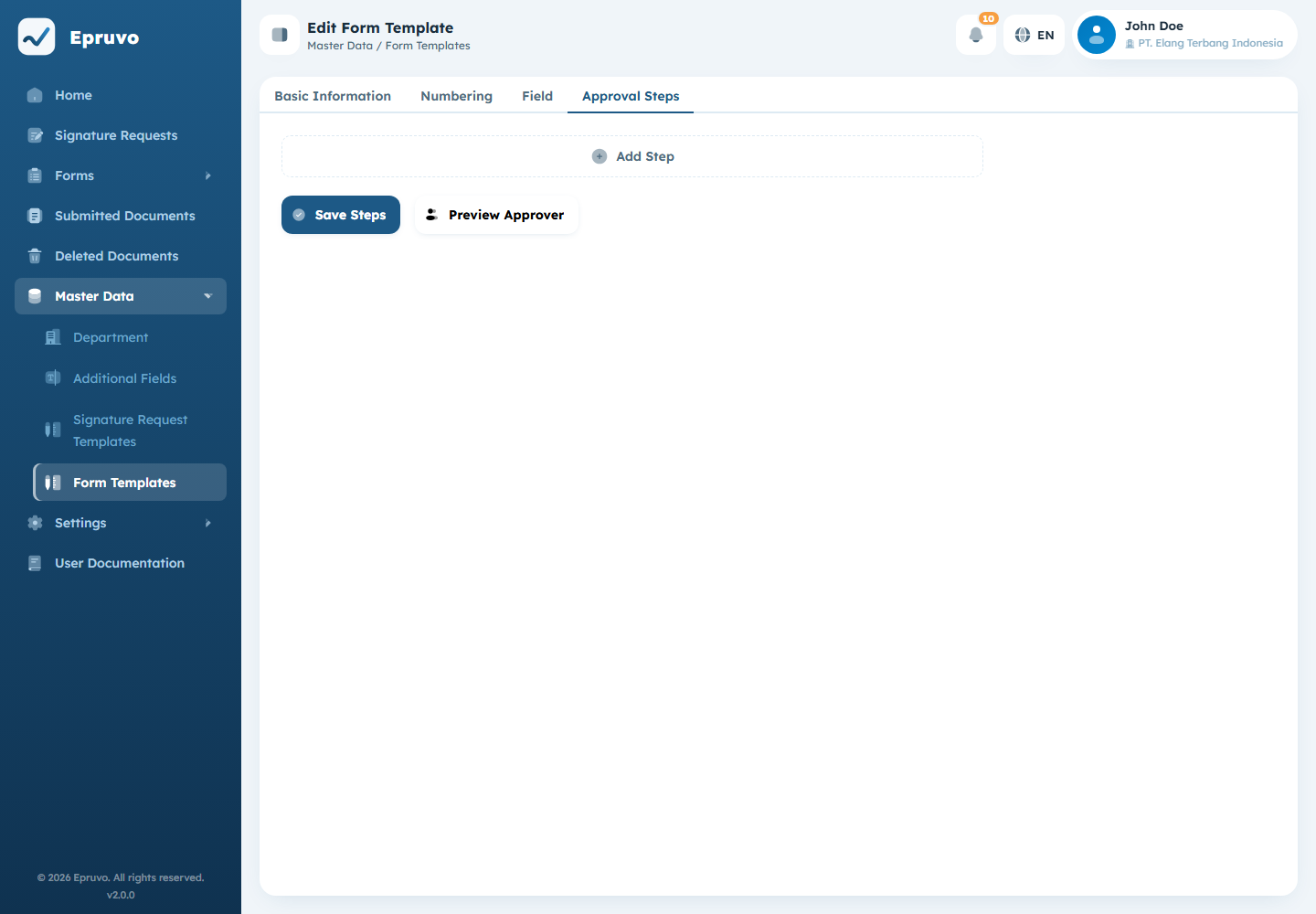
Steps run in order. A document reaches step 2 only after step 1 is settled. Use the arrows to reorder and the bin to remove.
AND or OR
Each step carries a switch:
- AND — every assignee in the step has to approve
- OR — any one of them is enough, and the rest no longer need to act
Use AND when two people are genuinely both accountable. Use OR for a pool of people any of whom can decide — it is what keeps a document moving when one of them is away.
Who approves
Add assignees with the picker. There are two kinds:
User — a named person. Always that person, whoever submits.
Group — a position relative to the submitter, resolved per document:
| Group | Resolves to |
|---|---|
Atasan 1 | The head one level above the submitter's department |
Atasan 2 | Two levels above |
Atasan 3 | Three levels above |
Kepala Departemen | The head of the top-most department in that branch |
INFO
These four labels appear in Indonesian in both interface languages.
Groups are what let one template serve the whole company. A request from Payroll goes to Payroll's manager and the same request from Logistics goes to Logistics'. Named users are for a step that is genuinely always the same person — a compliance officer, say.
A step with no assignee cannot be saved; Epruvo names the steps that are still empty.
Previewing the approvers
Preview Approver resolves every group against the current department tree and shows who would actually be asked, step by step.
The Preview Approver dialog listing the resolved users for each step
Run it before switching the form active. A step showing "No user yet" means the tree cannot supply that position — usually a department with no parent, or a parent with no head assigned. Documents hitting that step stall with nobody to act. Fix it in Organisation and departments, not here.
Select Save Steps.
Copying a template
Copy on a row duplicates everything — basic information, numbering, fields, and steps — under a new name. Faster than rebuilding a near-identical form, and safer than editing a live one.
The copy starts inactive. Adjust it, preview the approvers, then switch it on.
Common problems
| The form is not in anyone's sidebar | Active Status is off, or Allowed Roles excludes them. |
| Steps will not save | A step has no assignee. Epruvo names which. |
| Preview Approver shows "No user yet" | The department tree cannot resolve that position for some branch. |
| Documents stall at one step | Same cause, seen after the fact. Preview, then fix the tree. |
| Numbers repeat across months | Monthly reset without {month} in the prefix or suffix. |
| A submitter picked the wrong department | Turn Lock Department on. |
| The needed field is not in Available Fields | Define it in Additional fields first. |