
Roles and permissions
Settings → Roles. Needs a role with role permissions.
A role is a named bundle of permissions. Each member has at most one role in each company. That role applies only to the active company; a role named Manager elsewhere grants nothing here.
The company owner always receives every active permission and may have no role. The initial Administrator role receives every permission when a company is created, but is an ordinary role afterwards: it can be edited, deactivated, or deleted when it is no longer referenced.
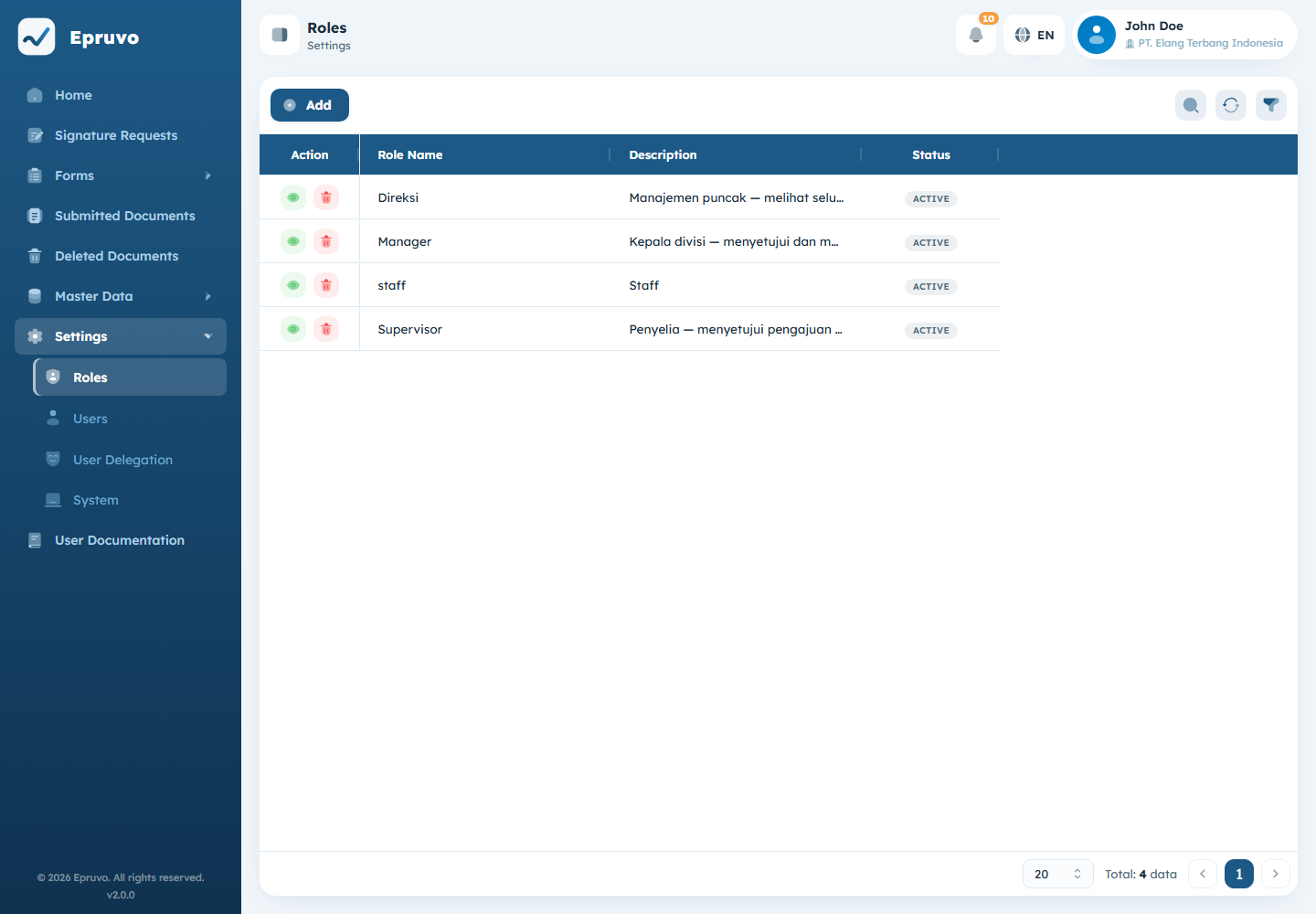
Creating a role
- Select Add.
- Enter a Role Name — the short handle, like
manager. - Enter a Description — what a person reads, like
Finance Manager. - Tick the permissions this role should carry. At least one is required.
- Select Save.
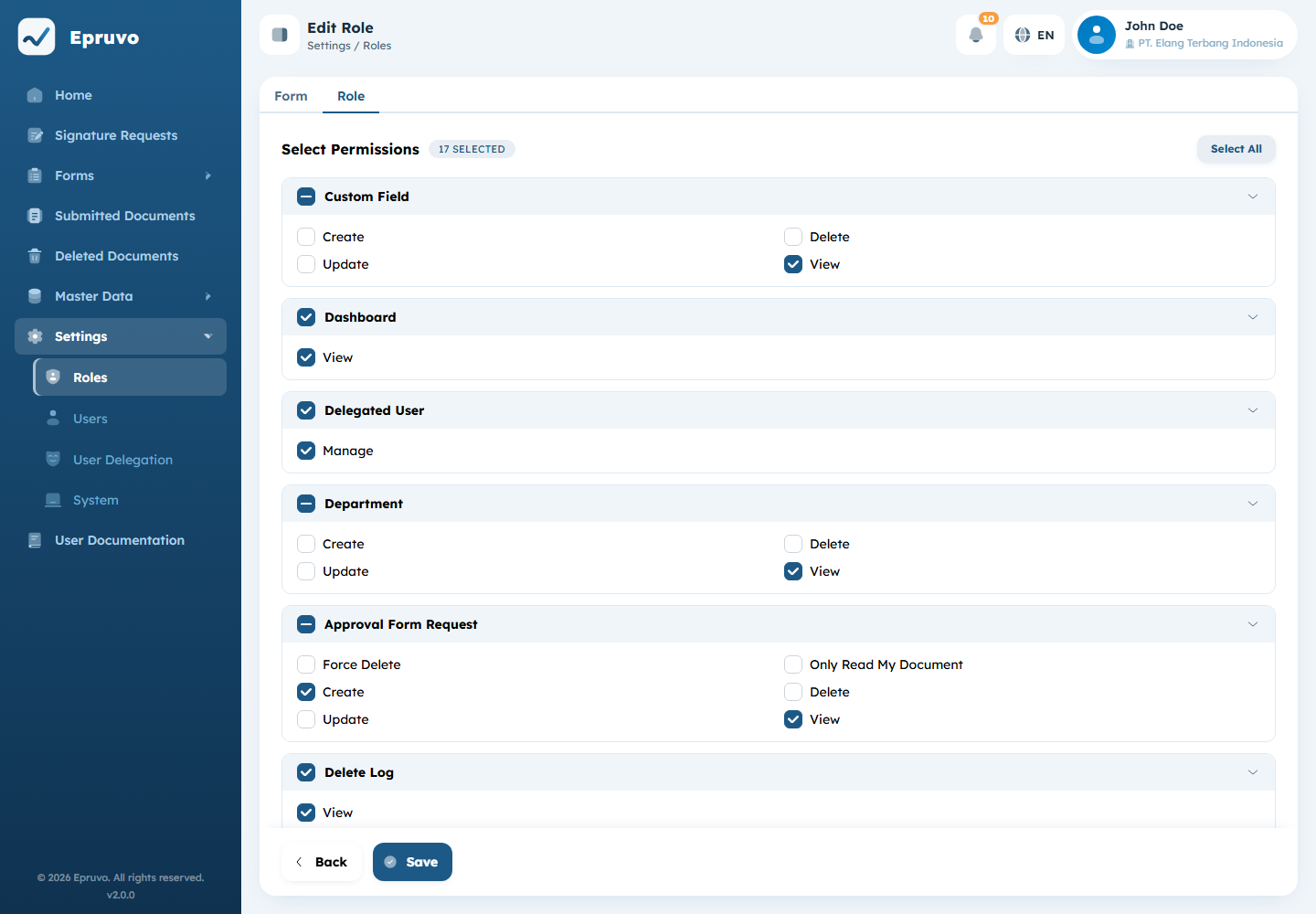
Permissions are grouped by the area they govern. Select All and Deselect All work on the group in front of you, and the count beside each group tells you how many are ticked without opening it.
Active Status switches a role off without deleting it. Users keep the role but stop getting what it grants.
What each permission unlocks
Most areas follow the same four: view, create, update, delete.
| Area | Governs |
|---|---|
| Role | Settings → Roles |
| User | Settings → Users |
| Profile | Editing one's own Profile; viewing it and changing the password are always available after sign-in |
| Settings | Settings → System |
| Department | Master Data → Department |
| Custom Field | Master Data → Additional Fields |
| Form Request | Master Data → Form Templates |
| Signature Template | Signature templates |
| Template Document Submission | Master Data → Signature Request Templates |
A handful do not fit that pattern and are worth understanding before you hand them out:
| Permission | Effect |
|---|---|
| View All Form Submissions | Opens every submission in the company. Without it, users see only their own submissions and current assignments. |
| Force Delete Document | Allows Void on a document that has already been approved. A strong permission; approved work is meant to stay approved. |
| View/Create/Update/Delete Signature | Controls access to Signature Requests and its administrative actions. Ordinary View still limits the list to documents owned by or assigned to the user. |
| View All Signature Requests | Opens every signature request in the company. |
| Force Delete Signature Requests | Allows deleting non-draft signature requests; it is separate from the Forms force-delete permission. |
| View Submitted Documents | Opens Submitted Documents. |
| View Log | Opens Deleted Documents. |
| View Dashboard Statistics | Adds the Organisation Statistics half of Home. Without it a user still sees their own work — see Your workspace. |
| Manage Delegated User | Opens and allows delegation management — see Delegation. |
| Resend User Activation | Allows Resend on a user who never activated. |
How menu visibility actually works
A menu appears when the role carries any one permission from that area, not all of them.
That has a consequence worth knowing. A role given only "create a form request" so its people can submit documents will also see Master Data → Form Templates in the sidebar, because create is one of the form-request permissions. They will not be able to save changes there — the buttons that need update or delete stay unavailable — but the menu is visible.
If you want a role kept out of a menu entirely, give it none of that area's permissions.
Editing and deleting
Edit changes the name, description, permissions, and active status. Deactivating a role immediately stops all of its permissions from contributing. When you edit your own role, menus and actions reload after a successful save.
Delete is rejected while members or Form Requests still reference the role. The rejection tells you how many references remain. Move those members and update those Form Requests first; an unreferenced role can then be deleted.
A workable starting set
Names are yours to choose; the shape is what matters.
| Role | Carries |
|---|---|
| Staff | Submit forms, edit their profile, and only the Signature CRUD permissions they need. Without View All Form Submissions, submissions are automatically limited to their own/current work. |
| Approver | Approval work remains available in My Approvals without administrative permissions; workflow assignment decides whether they can act. |
| Administrator | Departments, users, roles, custom fields, form templates, settings, submitted documents, log, and dashboard statistics |
Start narrow and add. Widening a role later is a two-minute change; discovering that everybody could always see everything is not.
Common problems
| A user sees a menu they should not | Any one permission in that area is enough. Remove the whole area from the role. |
| A user sees the menu but cannot save | Expected — they have view or create, but not update. |
| Nobody can open Home's statistics | The dashboard permission is separate from everything else. Add View Dashboard Statistics. |
| A role cannot be saved | At least one permission has to be ticked. |
| A role cannot be deleted | Members or Form Requests still reference it. Follow the reference counts in the rejection message. |
| Someone can void approved documents | They hold Force Delete Document. Remove it unless that is deliberate. |