
Company settings
Settings → System. Needs a role with settings permissions.
Everything here applies to the whole company. Three tabs: Account, Notification, and QR Code.
Account
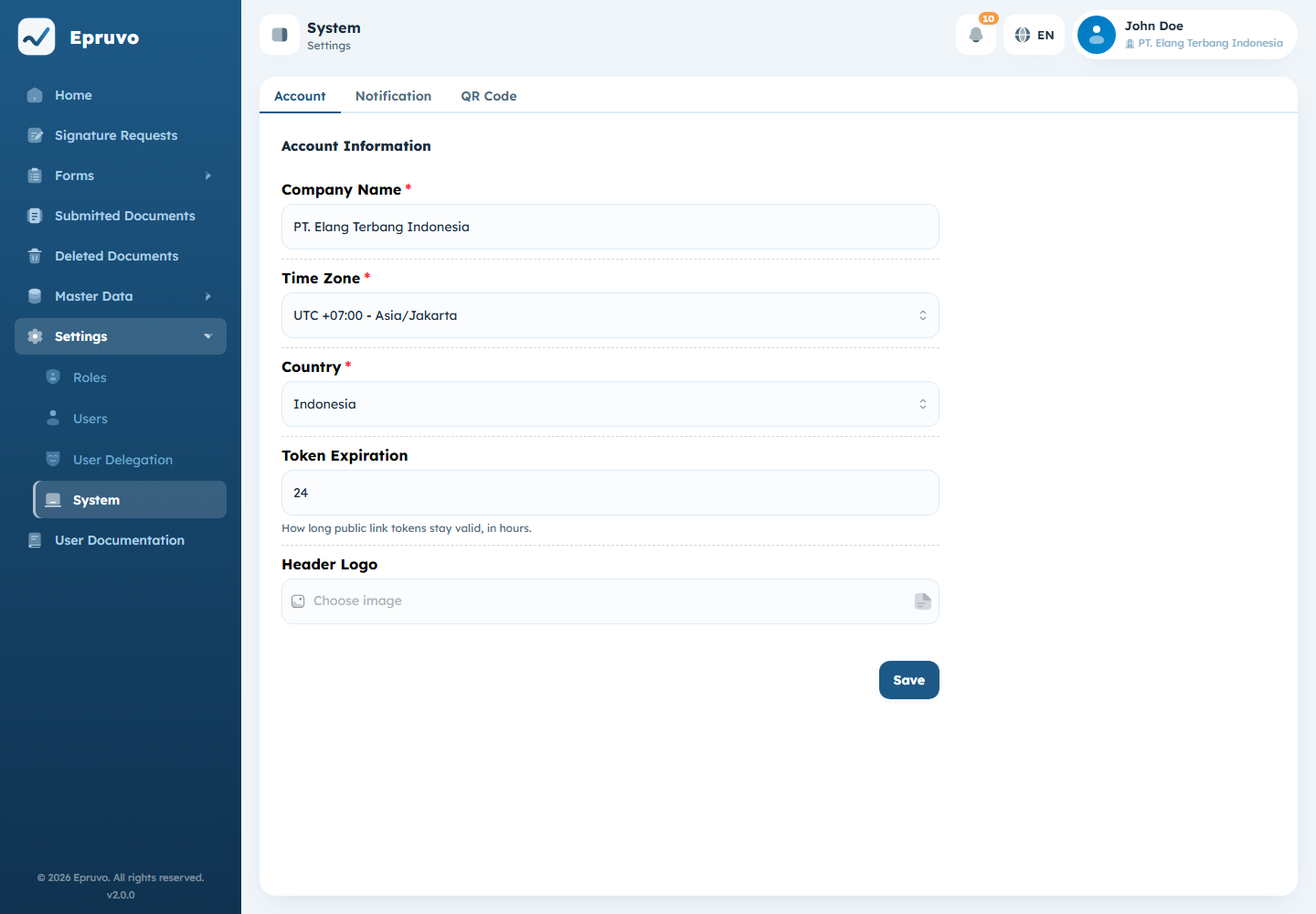
| Field | What it does |
|---|---|
| Company Name | The name people see, and the name that identifies this company on the Select Company and Switch Tenant screens |
| Country | Regional context for the company record |
| Time Zone | The clock every timestamp in Epruvo is shown in — submission times, decision times, and the "waiting N days" figures on Home |
| Token Expiration | How many hours a public link stays valid |
| Header Logo | The image shown in the application header. Choose image to upload, Remove logo to go back to the default. |
Time Zone is worth getting right early. Change it later and every historical timestamp is re-displayed in the new zone, which can make a document look as though it was decided on a different day than people remember.
Token Expiration governs the links Epruvo emails to people without an account — external signers and external form recipients. Once the hours run out, the link stops working and a fresh one has to be sent. Short is safer; long is kinder to someone who checks email once a week. See External access and verification.
Select Save when you are done. Each tab saves on its own.
Notification
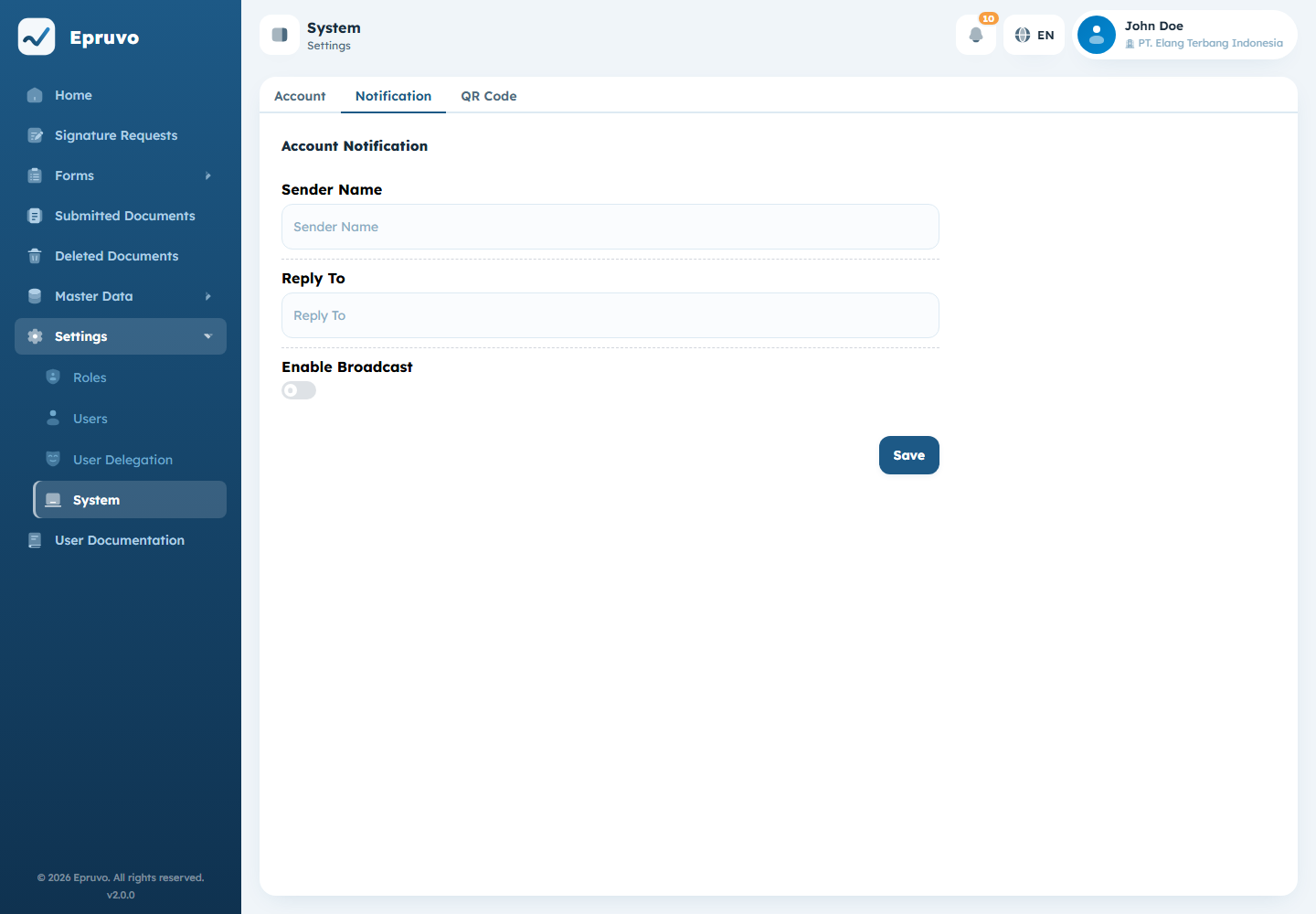
| Field | What it does |
|---|---|
| Sender Name | The name recipients see in the From line of Epruvo's emails |
| Reply To | Where a reply to one of those emails goes |
| Enable Broadcast | Whether Epruvo sends periodic reminders about work still waiting |
| Broadcast Interval | How many hours to wait before a reminder goes out. At least 1. |
Sender Name and Reply To decide whether an Epruvo email reads as coming from your company or from nowhere in particular. A Reply To nobody monitors is worse than none — people do reply to these.
Reminders repeat on the interval while the work is still outstanding. Setting it very low turns a helpful nudge into noise people learn to ignore.
QR Code
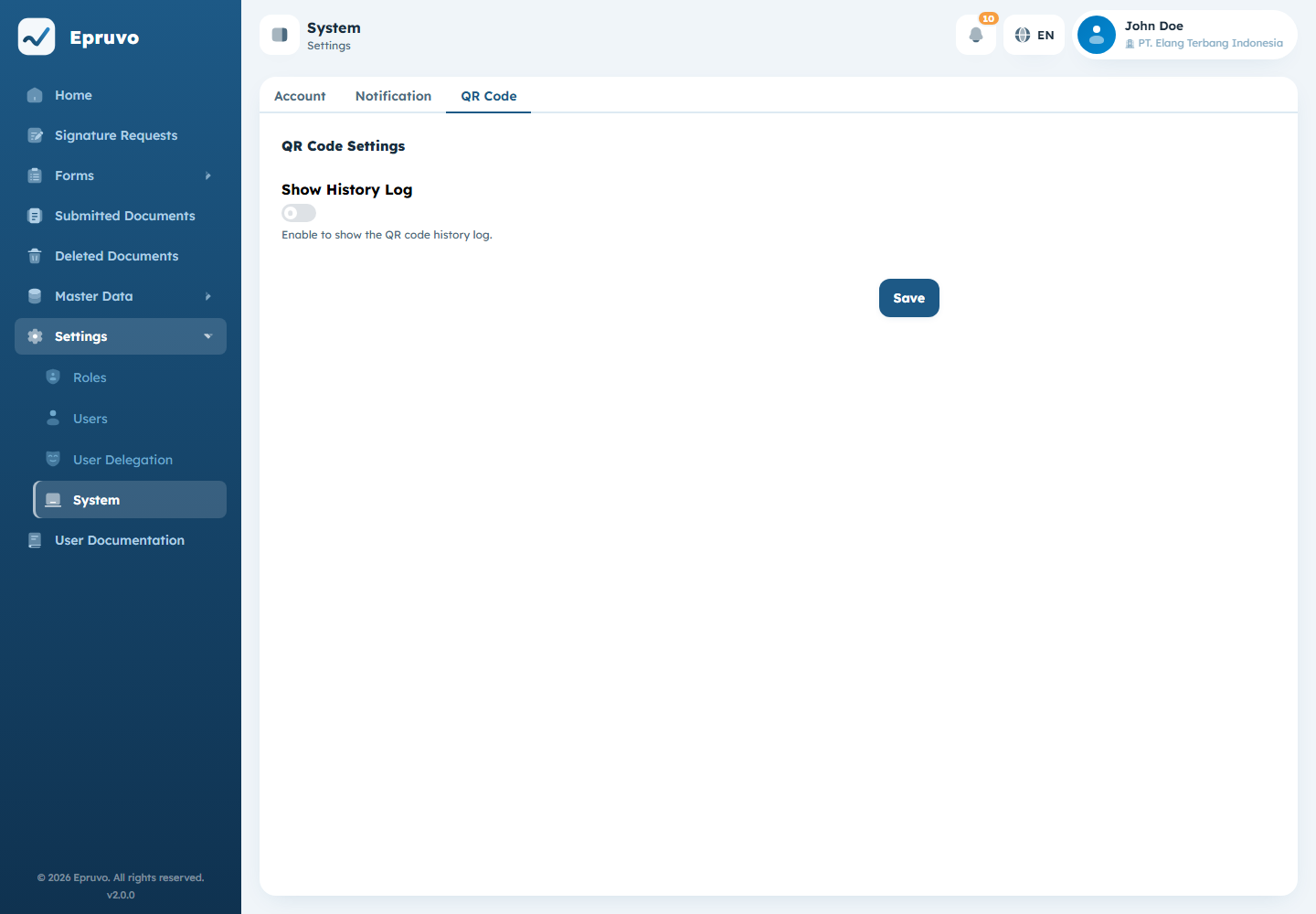
Show History Log decides how much the public verification page reveals.
A signed PDF can carry a QR code. Anyone who scans it — including people outside your company, with no account — lands on a page confirming the document is genuine. With this switch on, that page also shows the document's history: who acted on it and when.
Turn it on when the trail is the point, as with a document a counterparty needs to be able to audit. Leave it off when the names and timings are internal. Either way, scanning still confirms the document is real. See External access and verification.
Common problems
| The menu is not in the sidebar | Your role has no settings permission. |
| Times are consistently a few hours out | Time Zone on the Account tab. |
| External links expire before people use them | Raise Token Expiration, or resend when someone asks. |
| Emails arrive from an odd-looking sender | Sender Name and Reply To on the Notification tab. |
| People complain about repeated reminders | Raise Broadcast Interval, or switch Enable Broadcast off. |
| A scanned QR shows less than expected | Show History Log is off. |