
Signature requests
Signature Requests in the sidebar.
Use this when you already have the document — a contract, a memo, a letter — and what you need is signatures on it. You upload the PDF, say who signs and where on the page, and Epruvo collects the signatures and gives you back a signed file.
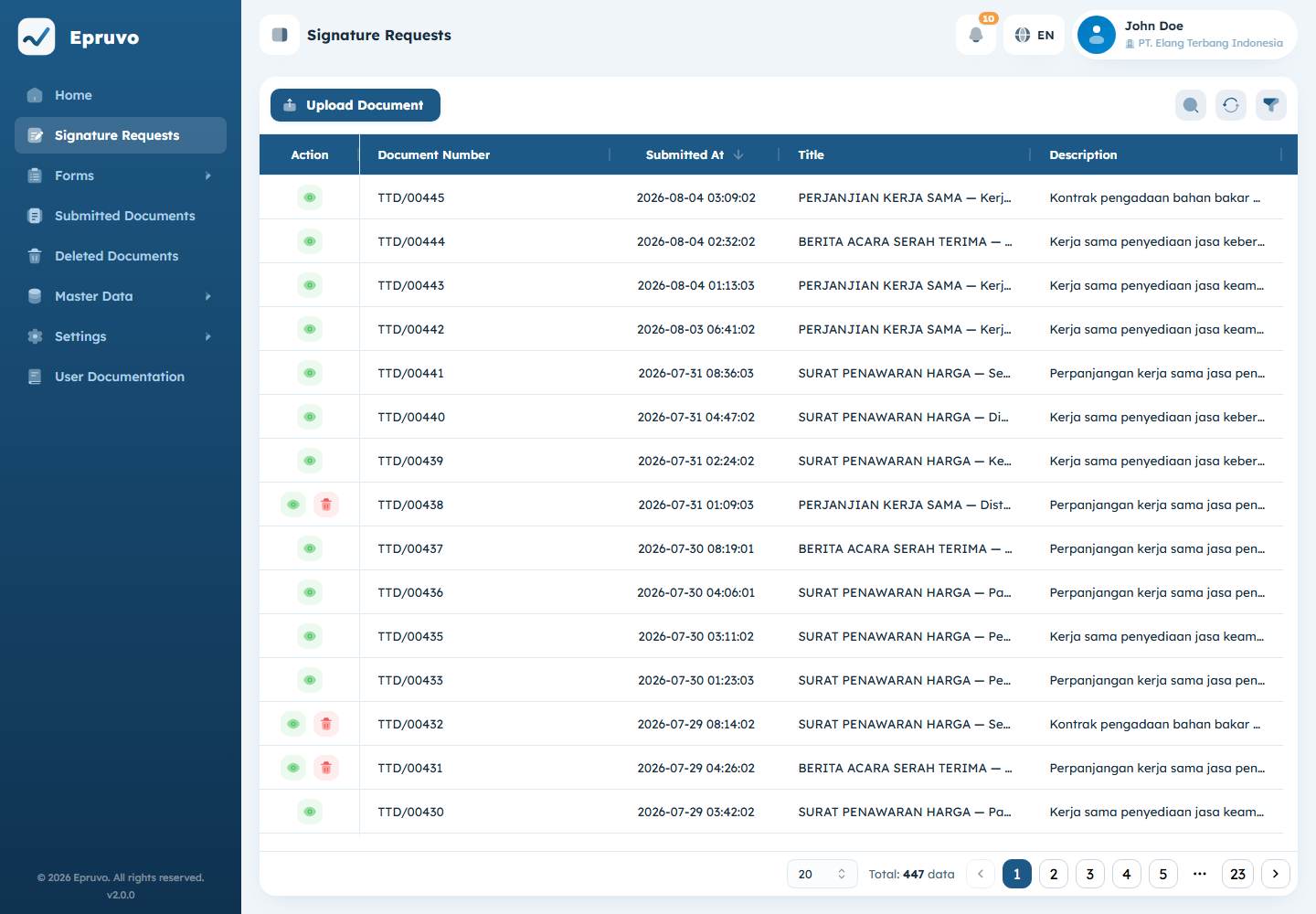
The list carries Document Number, Title, Description, Created By, Submitted At, and Status.
Creating one
- Select Create New Document.
- Upload the PDF.
- Give it a Title, and a description if it helps.
- Add the signers.
- Choose the signing mode.
- Place each signer's signature area on the page.
- Select Submit.
The PDF
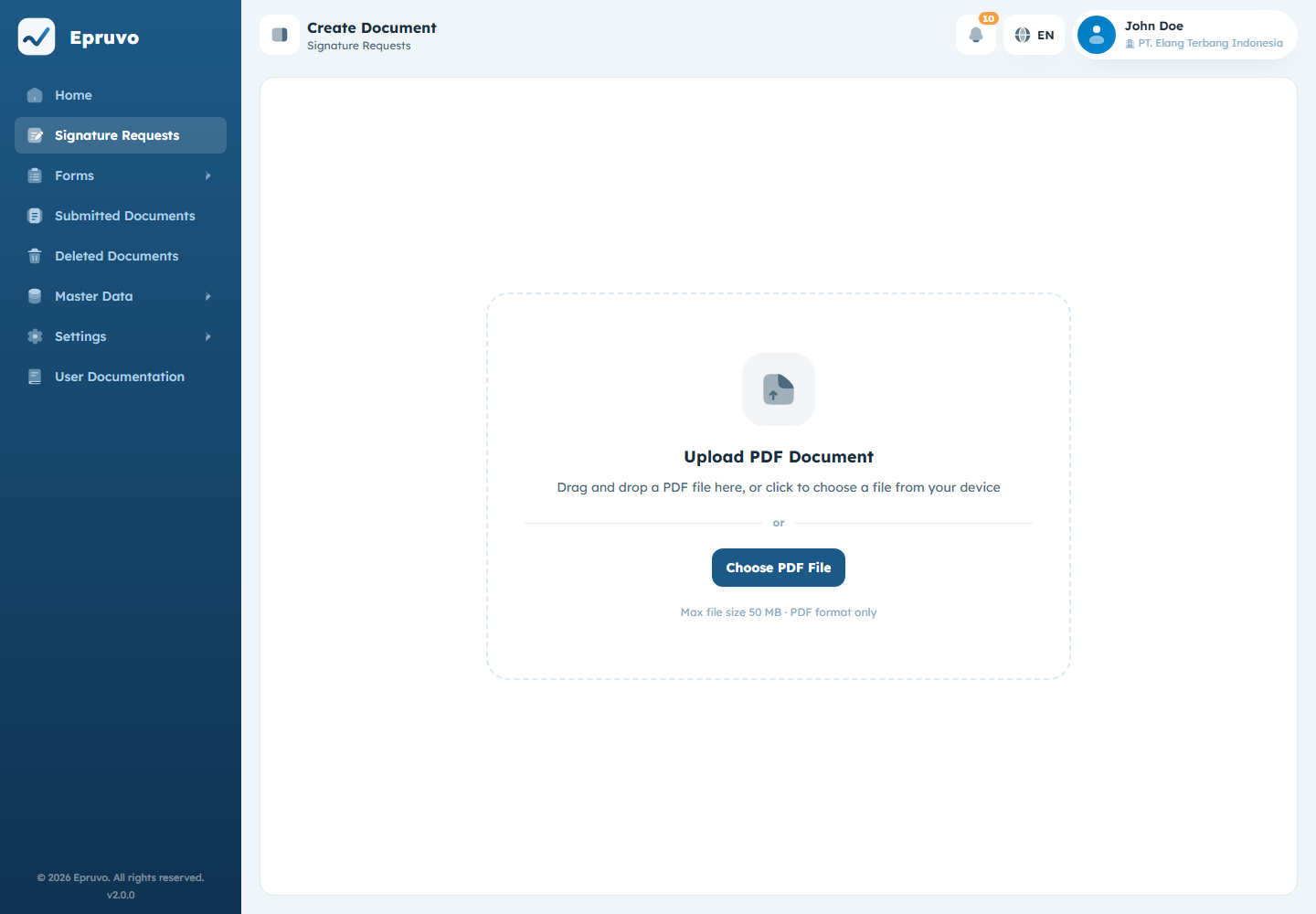
Drag a file onto the upload area or select Choose PDF File. PDF only, up to 50 MB. Replace file swaps it if you picked the wrong one — do that before placing signature areas, since replacing the document clears them.
The signers
Add Signer opens a picker with two tabs.
The Add Signer dialog with the Registered Users and External tabs
Registered Users — people with an Epruvo account in this company. Search by name or email. They sign inside Epruvo.
External — anyone else. Give a Full Name and an Email Address. Epruvo emails them a link that lets them sign without an account. See External access and verification.
If you enter an external email that already belongs to someone in this company, Epruvo says so and asks you to add them from Registered Users instead. Take that seriously: adding a colleague as an external signer sends them a link instead of the work appearing in their queue, and it lands outside the audit trail their account would have given you.
Drag signers in the list to change their order. With serial signing, that order is the sequence.
Signing Settings
| Setting | Choice |
|---|---|
| Signature Mode | Serial — one after another, in list order. Parallel — everyone at once, any order. |
| Show Signature | Whether the signature image appears in each approval block on the final PDF |
| QR Verification | Whether the finished PDF carries a public verification QR code |
Serial when order carries meaning — a manager should not be signing after someone whose approval was the precondition. Parallel when it does not, and you want it done sooner.
With QR Verification on, you must place the QR on the page as well as the signatures; Epruvo refuses to submit without it. What the resulting public page reveals is a company-wide setting — see Company settings.
Placing the signatures
Every signer needs at least one place on the document. Their name appears in the side panel; drag it onto the page where they should sign, or tap to place on a smaller screen.
The PDF editor with the signer panel on the right and placed signature blocks on the page
Use the zoom and page controls to work through a long document. A signer can have several areas — initialling every page is a normal reason. Add all to document places everyone at once when the layout is simple; Remove all from document starts the placement over.
The panel marks each signer Placed once they have somewhere to sign. Submitting is refused while anyone is unplaced, and Epruvo names them.
Additional Fields
If your company's signature template asks for extra information, it appears under Additional Fields. Required ones block submission the same way a form's do. See Signature request templates.
Save Draft or Submit
Save Draft keeps the work at DRAFT. Nothing is sent, and you can come back to it.
Submit sends it. Epruvo confirms first, because after this the document goes to the signers and cannot be changed. Internal signers find it in their queue and on Home; external ones get an email.
Statuses
| Status | Means |
|---|---|
DRAFT | Being prepared. Not sent. |
WAITING | Sent, waiting on at least one signer |
SIGNED | Everyone has signed. The final PDF is ready. |
REJECTED | A signer refused, with a reason |
EXPIRED | It passed its validity window without being completed |
EXPIRED usually means an external signer's link ran out. How long those links live is Token Expiration in Company settings.
Following one
Open a document to see its tabs: Information, Signers, and History.
A signature request detail page showing the document, its signers, and their status
Signers shows each person as Waiting, Signed, or Rejected, and marks whose Current turn it is under serial signing.
History is the audit trail — every action, when, and by whom. A delegated action is marked with the name of the person it was done on behalf of.
When it is finished
Once every signer has signed, the status becomes SIGNED and Download Document produces the final PDF, with the signatures in place and the verification QR if you asked for one.
Anyone can check that PDF later by scanning the QR — including people outside your company. See External access and verification.
A rejected document stops there. The reason is on the History tab. There is no way to reopen it; create a new request once whatever caused the rejection is resolved.
Common problems
| Signature Requests is not in the sidebar | Your role has no signature permission. |
| The upload is refused | PDF only, and no larger than 50 MB. |
| Submit is refused, "each signer must have at least one signature area" | Someone in the list has not been placed on the page. |
| Submit is refused, "the verification QR must be placed" | QR Verification is on but the QR has not been dropped onto the document. |
| "This email is registered in the active company" | Add that person from Registered Users instead. |
| An external signer says the link does not work | It expired, or it has already been used. Send a fresh request. |
It went to EXPIRED | The validity window ran out. Raise Token Expiration, or create a new request. |
| Signatures are not visible in the final PDF | Show Signature was off when it was created. |
| Only one signer can act at a time | Serial mode. Recreate as Parallel if the order does not matter. |