
Your profile and notifications
Your profile
Profile in the user menu, or Settings / Profile in the path at the top of the page.
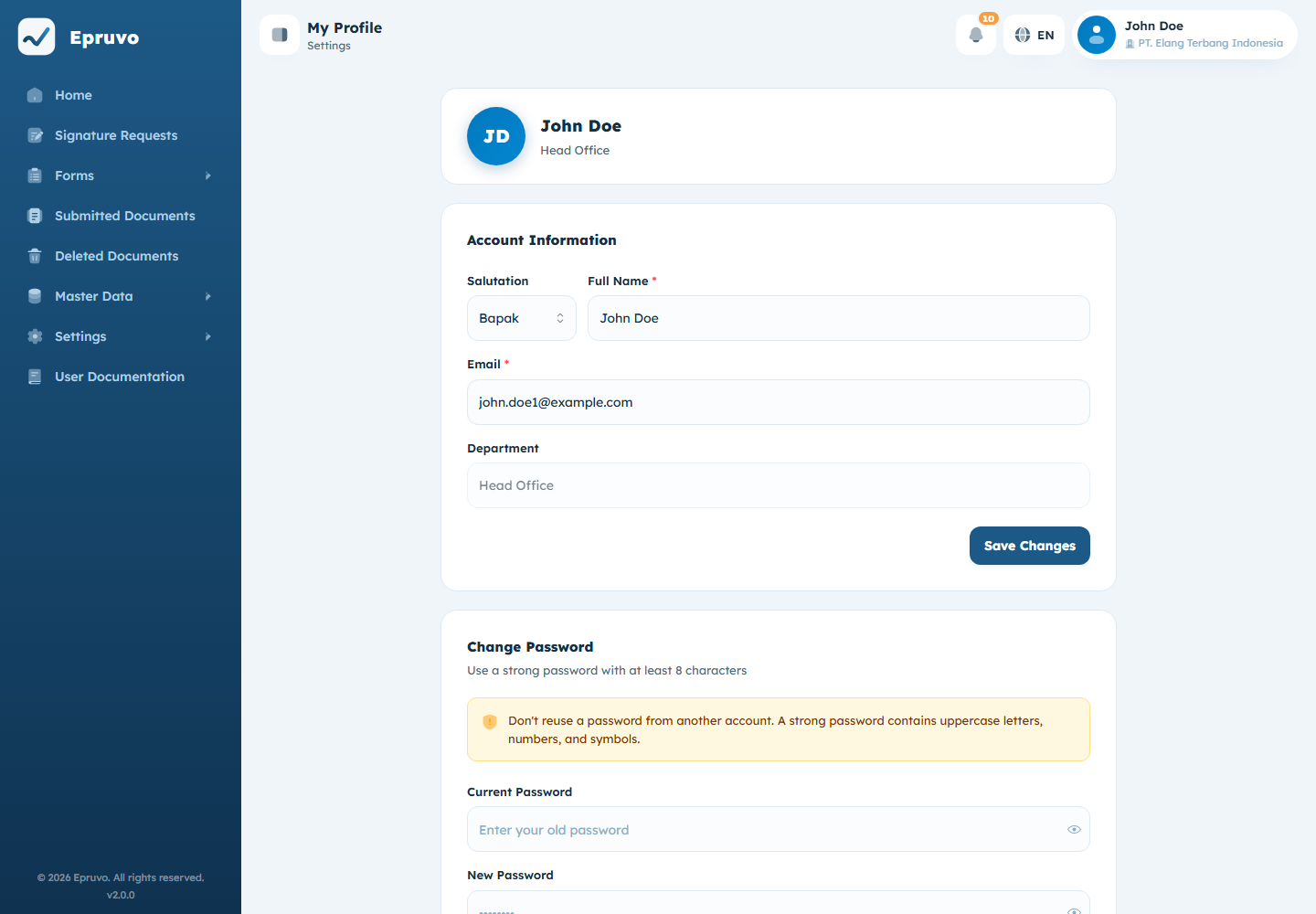
Three cards, top to bottom.
Your name and department. A circle with your initials, your name, and the department you belong to in this company. Nothing to edit here.
Account Information. Your Salutation, Full Name, and Email. Department is shown but cannot be changed from here — it is set by whoever manages users, because it decides who your approvers are. See Users.
The Save Changes button appears only if your role allows you to update your own profile. If it is not there, ask an administrator to make the change for you.
Remember these details belong to this company. Switching to another company shows a different profile, with its own department and role.
Changing your password
The Change Password card is at the bottom of the same page.
- Enter your Current Password.
- Enter the New Password. The bar underneath shows how it scores.
- Repeat it in Confirm New Password.
- Select Change Password.
A password needs at least 8 characters, an uppercase letter, a number, and a special character.
WARNING
Change Password in the user menu does not work — it leads to a "Page Not Found" screen. This card is the working route.
Notifications
Epruvo tells you when something needs you, and keeps a record of what it told you.
The bell
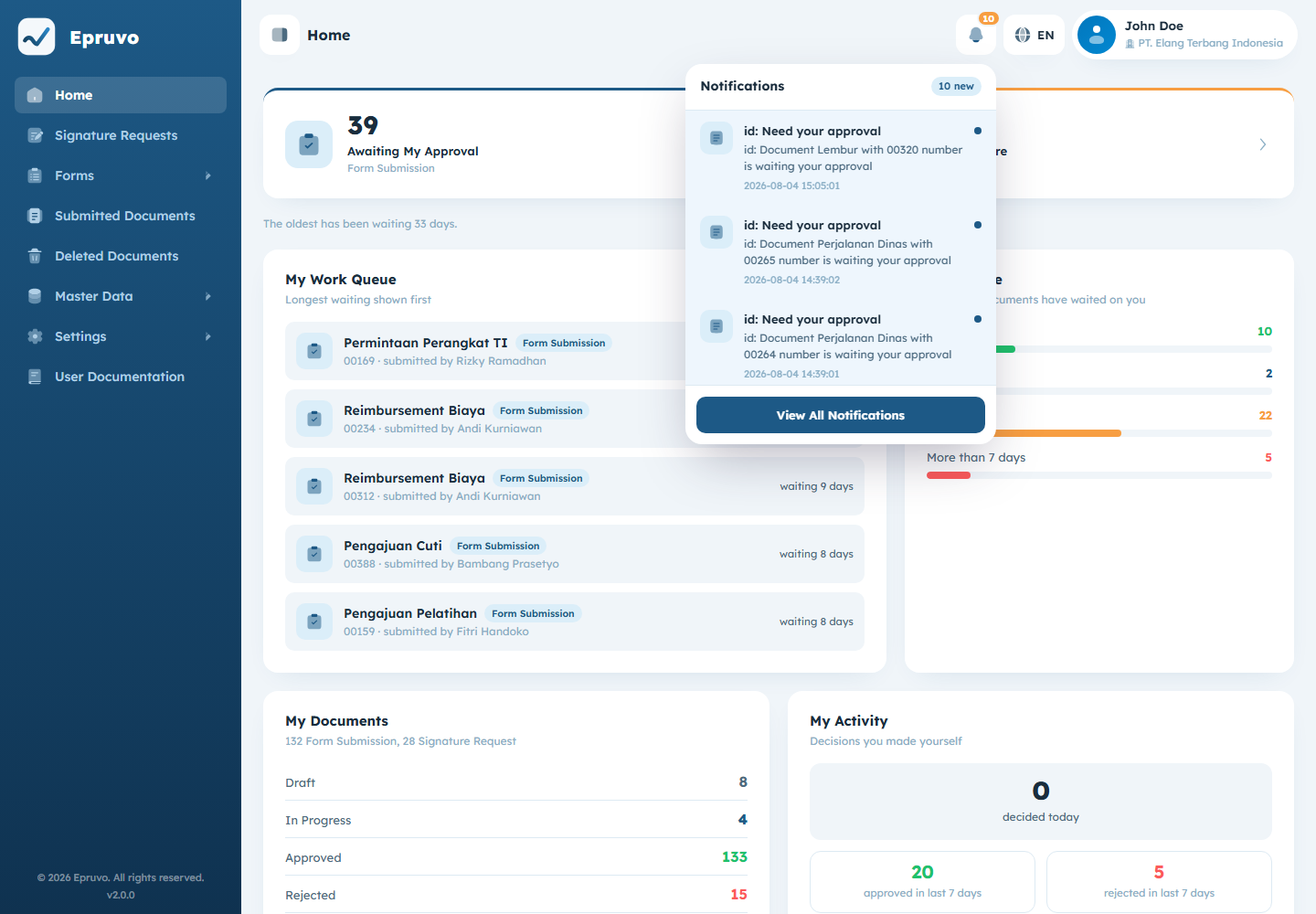
The bell in the top bar carries a count of unread notifications and lists the most recent ones. Selecting one takes you to whatever it is about. The count refreshes on its own while you work; you do not need to reload.
The full list
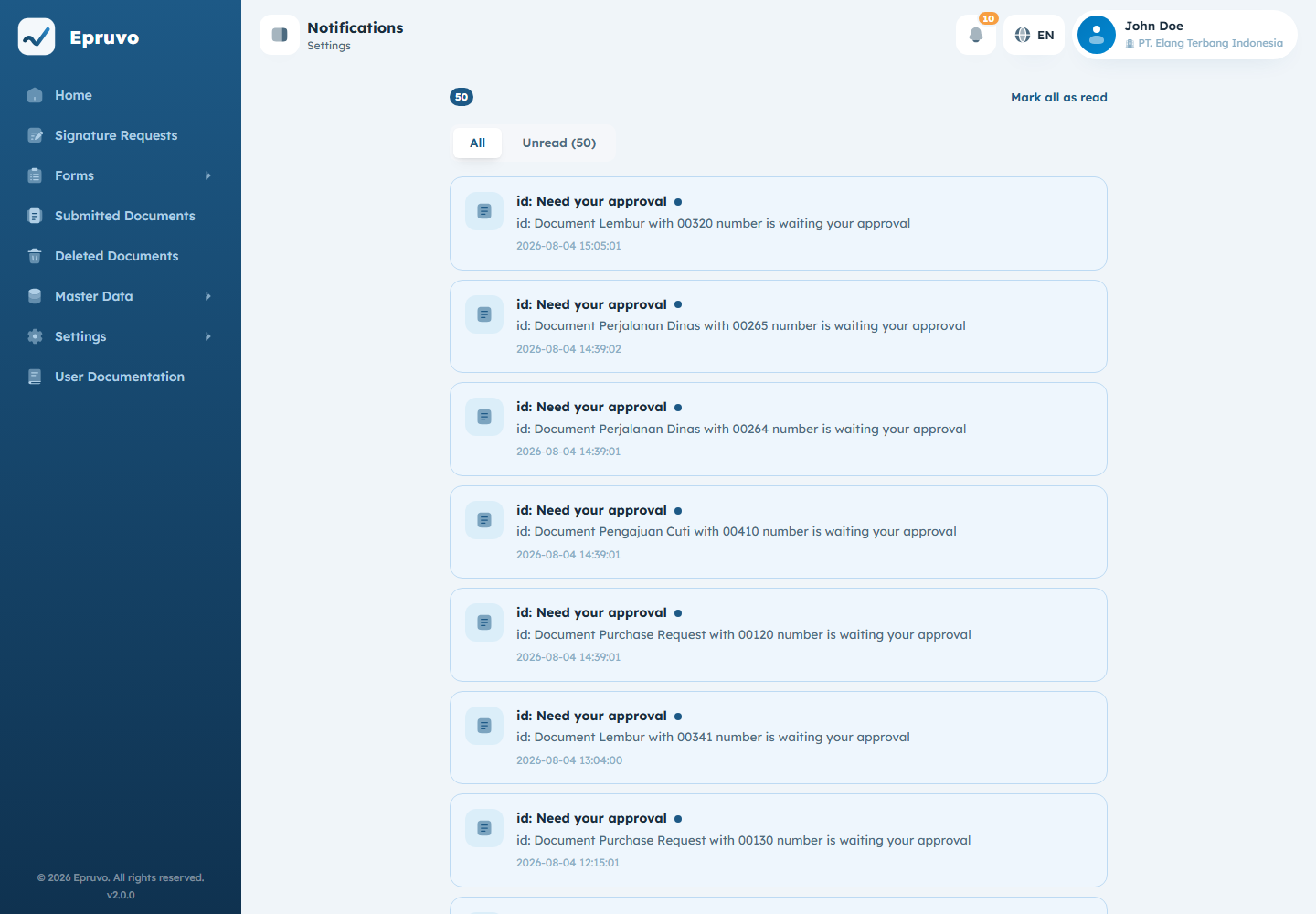
View All Notifications at the bottom of the bell opens the complete list.
Two filters: All and Unread. Mark all as read clears the count in one go — Epruvo asks first, because there is no undo.
What generates one
Broadly, anything that moves work toward you or tells you what happened to your own:
| A document reaches a step you are part of | You are asked to decide |
| A signature request reaches you | You are asked to sign |
| Something you submitted is approved or rejected | You are told the outcome |
| Someone delegates their approvals to you | You start receiving their work — see Delegation |
The same events can also arrive by email, and on a phone as a push notification. Which channels are active, who they appear to come from, and whether Epruvo sends periodic reminders about things still waiting are all company-wide settings — see Company settings.
Common problems
| Save Changes is not on the profile page | Your role cannot update the profile. An administrator can change it from Settings → Users. |
| Department is wrong | It is set under Settings → Users, not here. Getting it wrong sends your documents to the wrong approvers. |
| The bell count does not go down | Opening a notification marks it read. If the count is stale, reload the page; otherwise use Mark all as read. |
| No email arrives, but the bell works | Email is a separate channel with its own company settings. Report it to an administrator. |
| Change Password shows "Page Not Found" | Known. Use the card on Profile. |